Focused awareness learning based on SHAREhub pages. Apply the actual workplace arrangements and your role; completion is not practical competence or permission for specialist work.
This reader supplies the complete teaching. Use the interactive LMS course for assessed activities, saved progress and completion.
LESSON 1
Understand the whole workstation
Current DSE model · learning reference
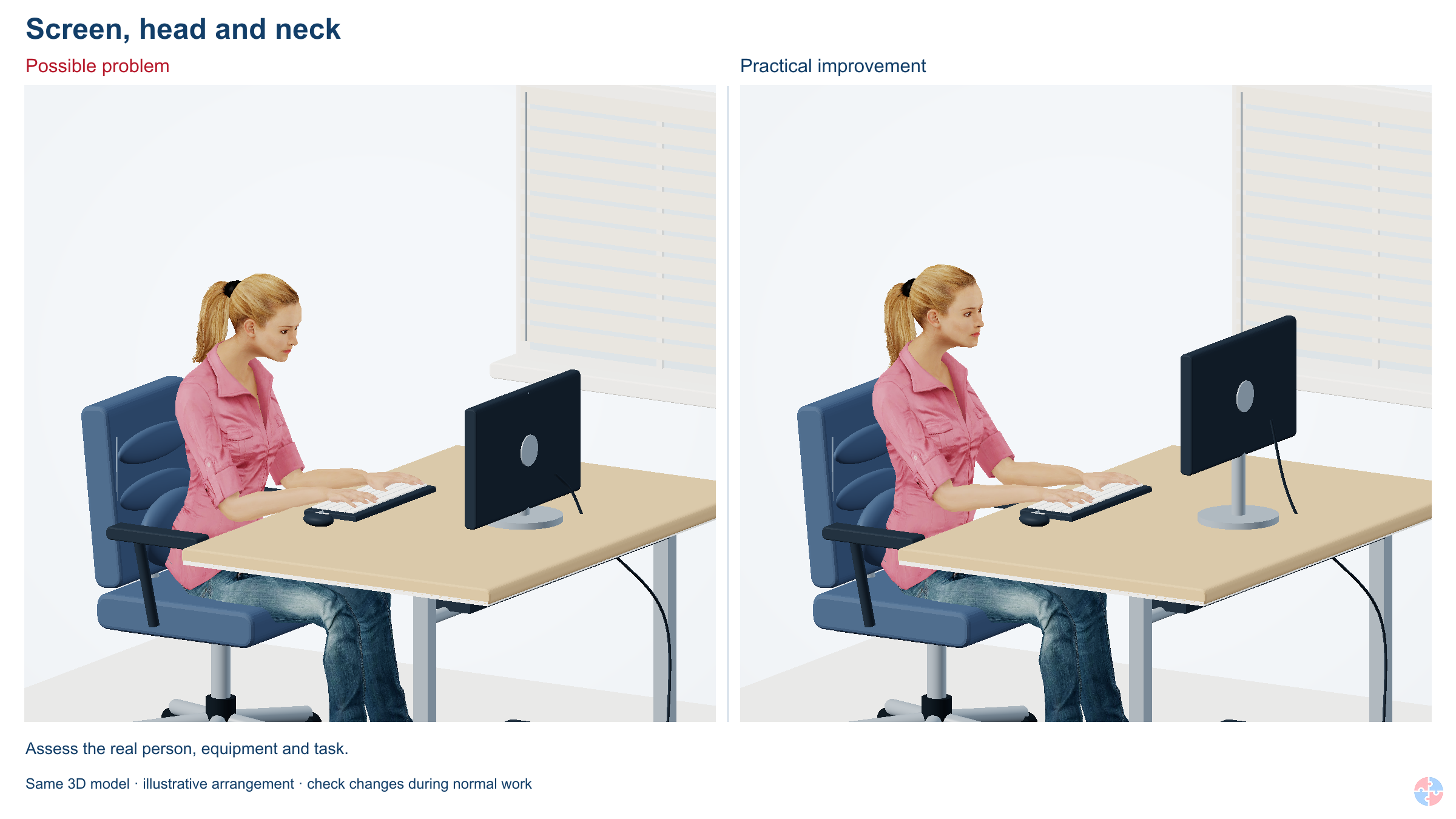
Compare the setup and explain the change
Actual renders from the current DSE simulator, comparing an example problem and an adjustment.
The display drops and the head bends forwards. Holding the head bent forwards can contribute to neck discomfort. The red area illustrates a possible location, not a measured load or diagnosis. Centre the main display and adjust height, distance and text size for comfortable viewing. Adapt the position for your vision and lenses.
Try the change in the actual task. The illustration does not diagnose discomfort or approve a workstation.
Connect screen-work discomfort with equipment, task and environment.
Existing SHAREhub photographic illustration. The written fictional case supplies the condition and decision evidence.
Understand the whole workstation
Display screen equipment includes the devices used for screen-based work, rather than only a desktop monitor. The risk depends on the task, duration and arrangement. Static or awkward posture, repeated small movements and reaching can contribute to musculoskeletal discomfort. Glare, demanding close work and poor display settings can contribute to visual fatigue.
Look at the whole system: chair, desk, screen, keyboard, mouse, software, lighting, space and work demands. The worker’s experience is useful evidence, not proof of a particular diagnosis. Early discomfort should lead to reporting and assessment rather than an instruction to tolerate it. A larger screen cannot solve a workload that prevents changes of activity, just as a reminder cannot repair an unsuitable chair.
Applied case
A booking adviser reports aching shoulders after long screen tasks. The manager proposes a brighter monitor without checking reach, support or call workload.
A clue is not a diagnosis
Aching or visual discomfort is a reason to review the work and use the support route. The course does not identify an individual medical condition.
Test your decision
What should the assessment examine?
The whole workstation, work pattern and user’s reported difficulties.
Only screen brightness because a screen is involved.
Only whether the chair was purchased recently.
Compare the explanation
The whole workstation, work pattern and user’s reported difficulties.
Different features can combine to create discomfort; assess the work rather than choose one purchase in advance.
Actual renders from the current DSE simulator, comparing an example problem and an adjustment.
The backrest support moves away and the person leans forwards. Lack of comfortable support can make sitting harder to sustain and contribute to back discomfort. There is no single posture to hold all day. Adjust the backrest and sitting position, keep close to the work and vary posture. Ask for help if the chair cannot support you comfortably.
The worker locates the lower back; the separate side view enlarges its bones, discs, nerve roots and nearby muscle.
Locate the lower back. How could the load, reach, route, equipment or work pattern be changed for the task in this lesson?
educational illustration · healthy anatomy; enlarged details and teaching colours.View full detail ↗The wrist and hand
The palm-side cutaway reveals tendons, a nerve and the band across the wrist. The enlarged detail helps distinguish the structures discussed in this lesson.
Locate the tendons and nerve at the wrist. Which force, repetition, reach or recovery demand should the task assessment examine?
educational illustration · healthy anatomy; enlarged details and teaching colours.
Photorealistic illustrative UK workplace scene. Review checks: Neck and shoulder pain: Screen too low or high, laptop use, shrugged shoulders, poor chair or reaching. Back pain: Poor chair support, slumped posture, no movement, desk height mismatch. Wrist, hand or arm symptoms: Poor mouse position, excessive grip, unsupported forearms, repeated input.
Arrange support and comfortable reach
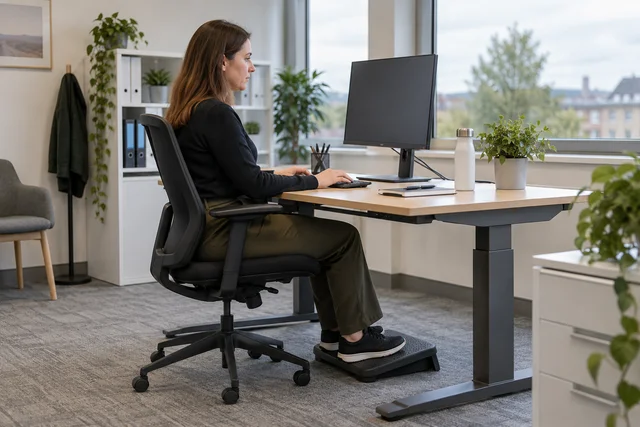
A workable arrangement lets the person use the screen and input devices without avoidable twisting or reaching. Adjust the chair for support and usable seat height, with feet supported on the floor or a suitable footrest. Provide room for the equipment and for changing position.
Keep the main screen in a suitable viewing position and the mouse close to the keyboard. Check glare and reflections as well as text size and contrast. These are starting questions for an assessment, not one rigid posture everyone must hold all day. A different task, user or visual need can require a different arrangement. Agree changes with the person, explain adjustments and check normal work afterwards; an attractive photograph of an empty desk cannot show whether the setup works in use.
Applied case
The office desk has an adjustable chair, but a printer forces the mouse far to one side. The user repeatedly reaches while handling customer bookings.
Adjustable is not adjusted
A chair with controls helps only when the worker can use them and the desk arrangement allows support, reach and movement during the actual task.
Test your decision
Which improvement addresses the observed cause?
Raise the monitor alone and leave the repeated reach unchanged.
Tell the adviser to hold one fixed posture throughout the shift.
Rearrange equipment so normal input work is comfortably within reach, then check use.
Compare the explanation
Rearrange equipment so normal input work is comfortably within reach, then check use.
The arrangement should reduce the actual reaching demand and permit variation, rather than demand tolerance of the layout.
Actual renders from the current DSE simulator, comparing an example problem and an adjustment.
The laptop lowers onto the desk and the separate keyboard is removed. For prolonged laptop use, keeping the screen and keyboard together can make comfortable viewing and typing difficult to achieve together. Consider a stable screen riser or a separate display, with a separate keyboard and pointer. Fit the arrangement to the task and user.
Try the change in the actual task. The illustration does not diagnose discomfort or approve a workstation.
Identify why a portable device can need additional equipment.
Existing SHAREhub 2D teaching schematic. Use alongside the explanation and fictional case in this lesson.
Make prolonged laptop work workable
A laptop joins the screen and keyboard. Raising the screen can raise the hands; lowering the hands can leave the screen poorly positioned. For prolonged work, the page describes using a separate keyboard and mouse with a raised laptop screen or separate monitor as appropriate.
Match the equipment to the actual task and space rather than treating portability as an exemption. A tablet may be convenient for a short stock check but awkward for prolonged report writing. Avoid arrangements that require repeated typing on a lap, in a cramped vehicle or while walking. The user needs a practical way to reproduce the agreed setup, including power, desk space and storage. Supplying peripherals is useful only when the person can actually connect and use them where the work happens.
Applied case
At home the adviser has a laptop riser but still types on the raised laptop keyboard. A separate keyboard is available in the office cupboard only.
Two connected positions
A joined screen and keyboard can force a compromise. Separate input devices can help only when they are available and usable in the assessed work location.
Test your decision
What remains unresolved?
A rule that portable equipment never needs assessment.
A usable home arrangement for both viewing and input, including access to suitable peripherals.
Nothing, because the laptop screen is now higher.
Compare the explanation
A usable home arrangement for both viewing and input, including access to suitable peripherals.
Improving viewing while making input awkward leaves a combined workstation problem.
Actual renders from the current DSE simulator, comparing an example problem and an adjustment.
A clock highlights an unvaried spell of seated screen work. Long unvaried periods can increase fatigue and discomfort even when the equipment is adjusted. The clock is a teaching cue, not a prescribed time limit. Agree frequent short breaks or genuine changes of activity, with opportunities to move. Check that the workload allows them.
Compare the visible eye with its enlarged side cutaway. Locate the clear front, lens and inner rear lining before following light and visual signals.
Distinguish the protective eye surface from the internal visual pathway. What task-specific protection or workstation change does this lesson require?
educational illustration · healthy anatomy; enlarged details and teaching colours.
Photorealistic illustrative UK workplace scene. Review checks: Elimination: Remove duplicate screen entry and unnecessary prolonged desk tasks from the workflow. Engineering controls: Replace laptop-only work with a suitable separate display and input arrangement after trying it with the user. Engineering controls: Provide a usable work area separated from storage and trip hazards so the worker can change posture safely. Engineering controls: Adjust chair, screen, keyboard and desk to the user and task; provide a suitable docking arrangement at both regular locations. Administrative controls: Plan changes of activity and manageable meeting blocks; agree a route for reporting symptoms and reviewing adjustments.
Change the work pattern
Prolonged screen work should be interrupted by breaks or suitable changes of activity. The purpose is to allow movement, posture variation and a rest from demanding visual or repetitive work. The appropriate pattern depends on intensity, task and individual needs; this course supplies no universal timer.
Plan the work so the interruption can happen. Moving from data entry straight into another intensive screen task may not provide the intended variation. Short, frequent changes can be more useful than saving all recovery for one long interval. A reminder on the screen is not an effective arrangement if call targets or staffing make it impossible to respond. Discuss the real workload with the responsible supervisor and review whether the agreed pattern works during an ordinary busy period.
Applied case
The adviser receives regular break reminders but the booking queue and performance targets allow no change of activity. The reminders are repeatedly dismissed during peak demand.
Different task, useful change
A change of activity should alter the relevant screen, posture or repetition demand. Its value follows the work actually done, not its name on a schedule.
Test your decision
What needs improvement?
The workload and practical activity arrangement, not merely another reminder.
A louder reminder while keeping every conflicting demand.
A rule that the worker is solely responsible for impossible breaks.
Compare the explanation
The workload and practical activity arrangement, not merely another reminder.
A work pattern is effective only when task demands allow the intended recovery and variation.
Actual renders from the current DSE simulator, comparing an example problem and an adjustment.
A reflected bright patch crosses the display; the source and reflected path are shown. Screen reflections can make detail harder to see and encourage an awkward head position. This represents visual discomfort, not eye damage. Reposition the screen relative to windows and lights, adjust blinds and check the screen again at different times.
Try the change in the actual task. The illustration does not diagnose discomfort or approve a workstation.
Identify reporting, assessment and follow-up roles.
Existing SHAREhub photographic illustration. The written fictional case supplies the condition and decision evidence.
Turn assessment into agreed action
A workstation assessment identifies difficulties, agrees improvements and checks the result. A self-assessment can reveal obvious issues, but unclear answers need review by someone able to help. Record actions with an owner and a practical follow-up rather than closing the form as soon as it is returned.
Ask about the task and reported discomfort without demanding a diagnosis. Use the workplace route for persistent concerns or specialist advice. Explain how the worker can access the applicable eye and eyesight-test arrangements; a casual screen check is not a substitute for that route. Changes of workstation, equipment, work pattern or individual needs can require reassessment. The strongest evidence is that the agreed change is in place and useful during normal work, not merely that an order was raised.
Applied case
The assessment recommends rearranging the desk and discussing visual discomfort through the employer’s arrangements. The ticket is closed when equipment is ordered, before any user follow-up.
Completion means a result
An ordered item and a completed questionnaire are useful records. Neither establishes that the person’s actual work arrangement has improved or that outstanding concerns have been addressed.
Test your decision
What would support closing the improvement action?
Treat the purchase order as proof that discomfort is resolved.
Require the user to diagnose their symptoms before any action.
Confirm the changes are available and useful, with unresolved concerns routed for review.
Compare the explanation
Confirm the changes are available and useful, with unresolved concerns routed for review.
The assessment must lead to implemented controls and a follow-up that respects the limits of the reviewer’s role.
Actual renders from the current DSE simulator, comparing an example problem and an adjustment.
The laptop lowers onto the desk and the separate keyboard is removed. For prolonged laptop use, keeping the screen and keyboard together can make comfortable viewing and typing difficult to achieve together. Consider a stable screen riser or a separate display, with a separate keyboard and pointer. Fit the arrangement to the task and user.
Try the change in the actual task. The illustration does not diagnose discomfort or approve a workstation.
Apply the same reasoning to hybrid work and changing needs.
Photorealistic illustrative UK workplace scene. Review checks: Find: The worker uses a laptop alone for prolonged screen work. Change: Trial a suitable display, separate input devices and an adjustable setup. Review: Check both regular locations and agree changes of activity.
Check every regular location
Home and hybrid work need the same risk-management principles applied to the actual locations used. A good office setup does not establish the condition of a kitchen-table workstation, and advice that cannot be reproduced at home has limited practical value. Establish what equipment and space are available.
Agree feasible adjustments, activity changes and a route for concerns. Respect personal circumstances and use appropriate support rather than relying on an intrusive inspection or assumptions about the home. Recheck after normal use, a task change or further discomfort. For the fictional transfer exercise, compare two work locations and identify one useful improvement at each. This develops assessment awareness; it does not certify you as a DSE assessor or replace occupational or clinical advice where needed.
Applied case
The adviser’s office reach problem is corrected, but home use remains unchanged. The manager plans to close both locations using the favourable office follow-up alone.
One person, two arrangements
Assessment follows the actual work locations and needs. A successful adjustment at one desk is evidence for that setup, rather than every place the person works.
Test your decision
Which conclusion fits the evidence?
The office result has no value until the home task is assessed.
The office improvement is supported; the home arrangement still needs its own practical review.
Every location is resolved because one adjustment worked.
Compare the explanation
The office improvement is supported; the home arrangement still needs its own practical review.
Retain the useful scoped improvement without extending it to a different unexamined setup.
Check the actual task and conditions in each place. Either setup can work well or need improvement; an office adjustment does not resolve an unchecked home workstation.
Use the illustrated hotspots, record the checks and review the suggested improvements. Download separate office and home reports, each with an action-priority score, action fields and an illustrated summary. Allow about 10–20 additional minutes per setup.
This optional self-assessment supports trained assessor review. It does not alter course grades, certify a workstation or diagnose symptoms. Answers stay in the open page until downloaded.