SHARE Knowledge Hub
What should you know about digital wellbeing and screen time?
Digital wellbeing and screen time at work is about designing digital work so people can use screens, software, devices and communication channels safely, productively and without avoidable harm to their eyes, body, attention, sleep, mental health or work-life boundaries. It includes the legal duty to manage display screen equipment (DSE) risks, but it is wider than desk posture: it covers laptop use, hybrid work, hot desking, meeting overload, notification pressure, always-on messaging, digital monitoring, accessibility, neurodiversity, fatigue, sedentary work and the way digital systems shape workload and control. Good management starts with the work itself: assess DSE users, fix workstation problems, plan breaks or changes of activity, provide eyesight-test arrangements, train workers, make remote setups sustainable, reduce unnecessary digital friction and check whether digital tools are helping people work well or quietly creating new health and performance risks.
Understanding What should you know about digital wellbeing and screen time?
Digital wellbeing is the ability to use digital systems in a way that supports safe, sustainable and inclusive work. It covers display screen equipment (DSE), prolonged sitting and fixed posture, visual demand, digital workload, email and messaging expectations, interruptions, online meetings, remote and hybrid work, monitoring technology, work-home boundaries, sleep disruption, isolation, accessibility and recovery. It is not a diagnosis or a personal resilience programme. It is primarily a work-design and management issue, with an appropriate route to clinical or occupational-health support where an individual's health needs it.
Why this matters at work
Boundary arrangements should be explicit. Agree normal working hours, availability, handover, urgent-contact routes, email and message response expectations, out-of-hours escalation, on-call arrangements, device use, travel and recovery. A boundary policy does not replace risk, working-time or fatigue duties. Check the actual employment, on-call and territorial arrangements before asserting that a policy creates or cancels an entitlement. The reliable approach is work design, staffing, leadership behaviour and a fair route to raise pressure without adverse consequence.
Digital overload can arise from the combined demand of messages, email, collaboration platforms, multiple log-ins, dashboards, alerts, status tracking, context switching, automated workflow and online meetings. The harm mechanism is not simply time spent looking at a screen. Fragmented attention, unclear priority, information volume, constant interruption and a fear of missing a request can increase cognitive load, error and stress. Measure the task demands and workflow, not just individual screen-time totals.
How organisations manage this in practice
Digital wellbeing is designed into procurement and change, not retrofitted only after complaints. Before selecting a platform, device, dashboard, monitoring tool, AI feature or communications system, define the work purpose, user groups, tasks, workload effects, safety-critical interfaces, accessibility, home and mobile context, training need, privacy impact, data use, failure modes, support model and offboarding. Include workers, health and safety, IT, data protection, HR, operations, accessibility specialists and representatives proportionately. A procurement decision that reduces the price of a device but makes sustained work physically or cognitively harder is not a successful risk control.
Digital work can amplify each of HSE's Management Standards: demands through volume and pace; control through notification and monitoring; support through access to responsive managers; relationships through online conduct and isolation; role through ambiguous communications and competing systems; and change through poorly introduced technology. Use a suitable stress risk assessment, consult employees and act on the findings. A wellbeing app, resilience webinar or reminder to switch off may be useful support, but it does not control unreasonable demands, poor leadership or an inaccessible work system.
Good continuous improvement closes the loop. Communicate what was heard, what will change, what cannot change immediately and what interim protection applies. Assign action owners and realistic dates. Test change in the work setting and ask workers whether it solved the problem without creating a new one. Report governance-level themes, such as persistent workload overload or inaccessible systems, to the level that can resource a solution. That feedback loop is itself a prevention barrier: it stops reports from becoming evidence that an organisation knew about a risk but did nothing.
Separate equipment, workload and monitoring questions
Digital work needs more than a screen-time target. Check software usability, interruptions, staffing and availability expectations alongside physical workstation needs; keep monitoring and health information limited to an appropriate purpose.
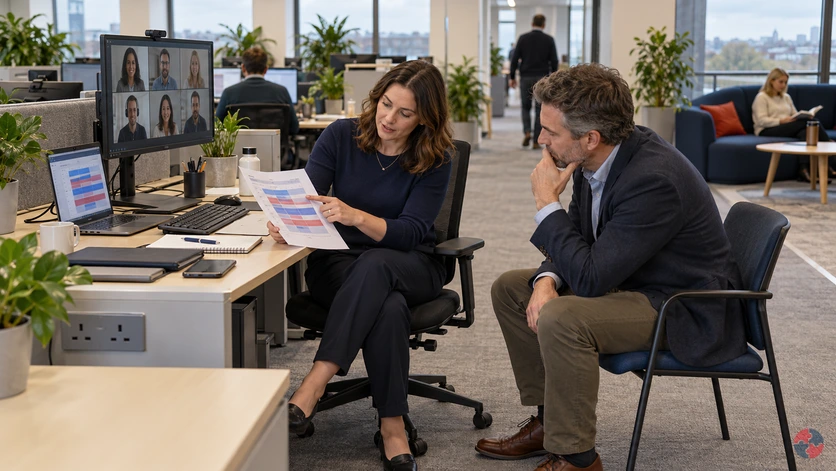
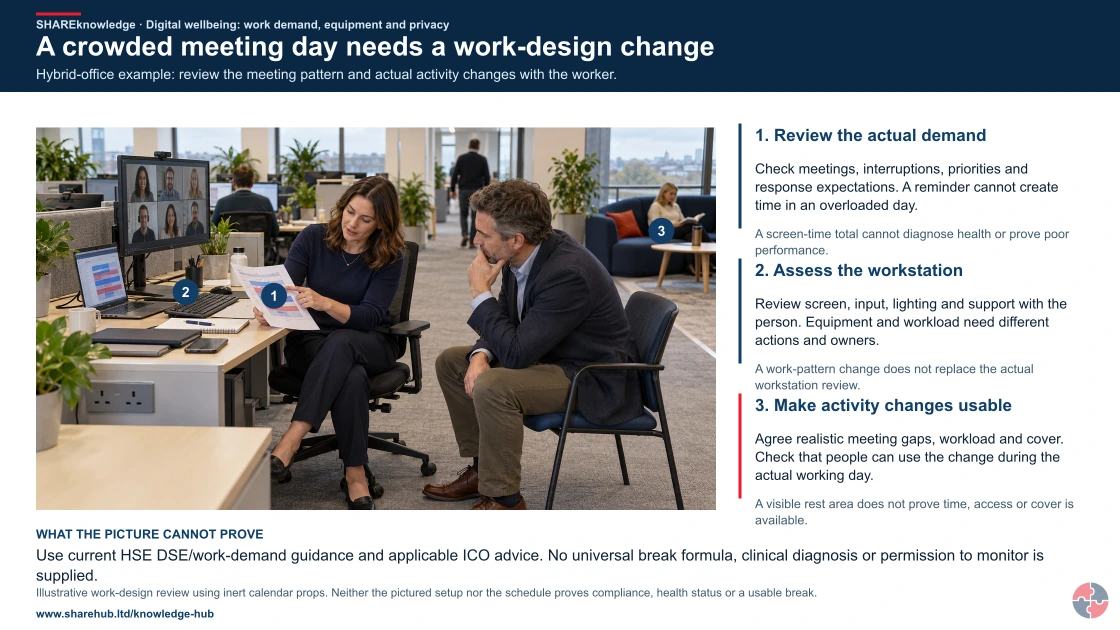
A crowded meeting day needs a work-design change
Full written explanation
Hybrid-office example: review the meeting pattern and actual activity changes with the worker.
- Review the actual demand. Check meetings, interruptions, priorities and response expectations. A reminder cannot create time in an overloaded day.
- Assess the workstation. Review screen, input, lighting and support with the person. Equipment and workload need different actions and owners.
- Make activity changes usable. Agree realistic meeting gaps, workload and cover. Check that people can use the change during the actual working day.
Change the pathway
- No screen-time verdict. A screen-time total cannot diagnose health or prove poor performance.
- Keep the DSE assessment. A work-pattern change does not replace the actual workstation review.
- Design the work together. A visible rest area does not prove time, access or cover is available.
Evidence check: Use current HSE DSE/work-demand guidance and applicable ICO advice. No universal break formula, clinical diagnosis or permission to monitor is supplied.
Work demand, activity changes, DSE assessment and transparent monitoring
Primary references: HSE: DSE work routine and breaks (GB) · HSE: work demands (GB) · ICO: monitoring workers — check current guidance
Open the complete HD image (new tab)Download image

Work demand, activity changes, DSE assessment and transparent monitoring
Primary references: HSE: DSE work routine and breaks (GB) · HSE: work demands (GB) · ICO: monitoring workers — check current guidance
A busy booking team receives messages after hours
Illustrative example. Meetings and alerts interrupt reception work and create an unmanageable backlog.
Decision. Agree protected work time, realistic priorities and communication boundaries with the team.
Evidence to check. Work demand, interruption patterns, accessibility feedback and unresolved DSE actions.
Hold or escalation point. Do not use activity surveillance as proof of wellbeing or invent a universal legal screen-time limit.
Follow-up. Review service quality and worker feedback after workload and equipment changes.
Give equipment, workload and data use different owners
A better chair cannot resolve an overloaded notification day, and monitoring needs its own transparent purpose. Review the distinct work barriers rather than count screen time alone.
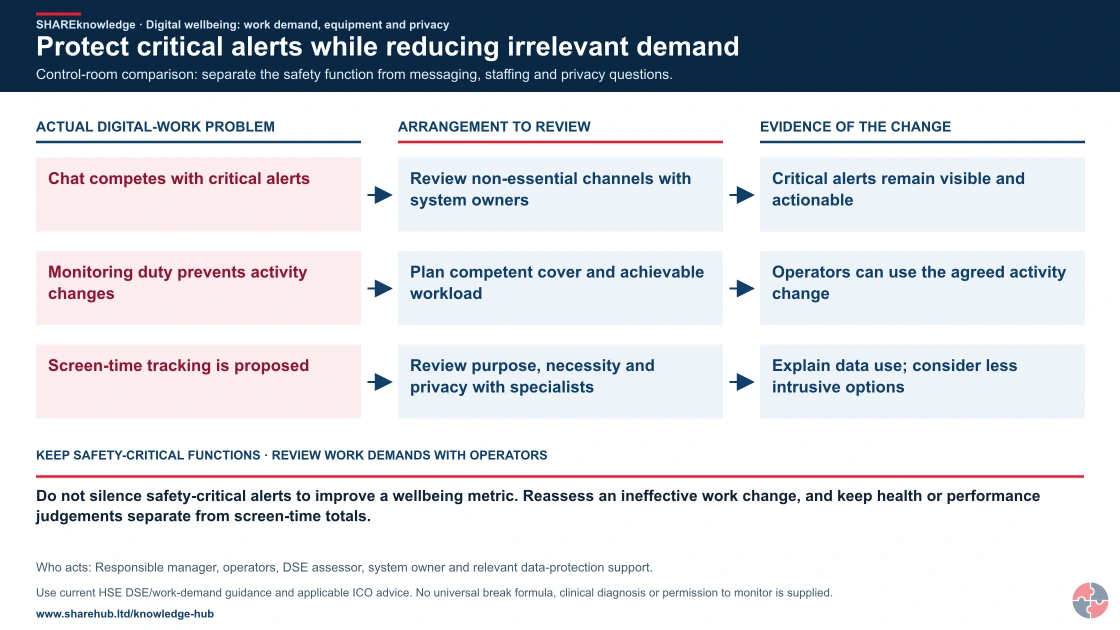
Protect critical alerts while reducing irrelevant demand
Full written explanation
A three-column control-room map links competing non-essential messages, unrelieved monitoring duty and proposed worker monitoring to different owners and evidence. Safety-critical alerts keep their assessed response function; operators are not told to silence them. Workload/cover changes and transparent proportionate data use are reviewed separately.
Control-room comparison: separate the safety function from messaging, staffing and privacy questions.
- Identify competing demands. Consult operators about messaging, alarms, workload and missed activity changes.
- Protect the safety function. Any system change belongs with the responsible competent system owner and assessment.
- Verify usable work changes. Check staffing cover, realistic priorities and the response to critical alerts after a change.
- Review monitoring separately. Use a clear purpose, transparency and proportionate data handling; obtain appropriate specialist advice.
When the evidence does not fit: Do not silence safety-critical alerts to improve a wellbeing metric. Reassess an ineffective work change, and keep health or performance judgements separate from screen-time totals.
Who acts: Responsible manager, operators, DSE assessor, system owner and relevant data-protection support.
Changed workplace
Hybrid office: Redesign meetings and interruptions alongside the workstation assessment.
Control room: Protect critical functions while reviewing channels, cover and data use.
| ACTUAL DIGITAL-WORK PROBLEM | ARRANGEMENT TO REVIEW | EVIDENCE OF THE CHANGE |
|---|---|---|
| Chat competes with critical alerts | Review non-essential channels with system owners | Critical alerts remain visible and actionable |
| Monitoring duty prevents activity changes | Plan competent cover and achievable workload | Operators can use the agreed activity change |
| Screen-time tracking is proposed | Review purpose, necessity and privacy with specialists | Explain data use; consider less intrusive options |
Evidence check: Use current HSE DSE/work-demand guidance and applicable ICO advice. No universal break formula, clinical diagnosis or permission to monitor is supplied.
Work demand, activity changes, DSE assessment and transparent monitoring
Primary references: HSE: DSE work routine and breaks (GB) · HSE: work demands (GB) · ICO: monitoring workers — check current guidance
Open the complete HD image (new tab)Download image

Work demand, activity changes, DSE assessment and transparent monitoring
Primary references: HSE: DSE work routine and breaks (GB) · HSE: work demands (GB) · ICO: monitoring workers — check current guidance

Equipment and task
Assess screen, input, lighting and support with the person, including reported discomfort.
Work design
Review meetings, notifications, focus time, priorities and usable activity changes with the relevant manager.
Data and review
Explain proportionate monitoring and data use; check whether agreed changes improve the actual work.
Do not infer an individual health condition or performance verdict from a screen-time total.
What key facts should people know first about digital wellbeing and screen time?
Digital wellbeing at work should be treated as workplace guidance, not medical, optometry, legal, HR or data-protection advice.
This page explains how digital work can affect wellbeing and how organisations can manage common workplace risks. It does not diagnose eyesight problems, musculoskeletal disorders, stress, sleep disorders or mental health conditions, and it does not replace advice from an optometrist, GP, occupational health professional, HR adviser, legal adviser or data protection specialist.
The strongest starting point is DSE compliance. If a worker uses screens daily for sustained work, the employer should identify whether they are a DSE user, assess the workstation, reduce risks, plan breaks or changes of activity, provide training and information, and arrange an eyesight test if the user requests one.
The second layer is work design. A perfect chair will not fix back-to-back video meetings, constant alerts, unrealistic response times, poor software, excessive digital monitoring or a home-working arrangement where the person has no workable space. Digital wellbeing needs both ergonomic controls and management controls.
| Key fact | What it means in practice |
|---|---|
| DSE is the legal foundation | Screens, laptops, tablets and smartphones used for sustained work should be managed through DSE assessment, training, breaks and eye-test arrangements. |
| Digital wellbeing is wider than posture | It includes attention, workload, meeting design, communication boundaries, fatigue, sleep, accessibility and privacy. |
| Laptop-only work is a common weak point | Prolonged laptop use normally needs a raised screen and separate keyboard and mouse to avoid awkward posture. |
| Breaks are controls | Breaks or changes of activity reduce visual fatigue, static posture and mental load; they should be designed into work, not left to chance. |
| Monitoring can harm trust | Digital monitoring must be lawful, fair and proportionate; excessive monitoring can damage privacy and mental wellbeing. |
| Home working still counts as work | Home and hybrid DSE arrangements should be assessed, supported and reviewed where the regulations apply. |
What does digital wellbeing and screen time mean at work?
Digital wellbeing is the ability to use digital tools in a way that supports safe, healthy and effective work.
The phrase is sometimes used casually to mean spending less time on screens. In a workplace, that is too narrow. Many jobs now depend on screens for planning, communication, records, design, bookings, maintenance systems, risk assessments, e-learning, incident reporting, monitoring, finance, customer service and supervision. The issue is not whether screens exist; it is whether digital work has been designed well.
Screen time can create risk through several routes. Static posture can load the neck, shoulders, back, wrists and hands. Visual demand can contribute to tired eyes, discomfort and headaches. Digital pace can fragment attention through alerts, chats and switching between platforms. Remote work can blur boundaries and make it harder to notice when people are isolated or overloaded.
Digital wellbeing also includes fairness and inclusion. Some people need assistive technology, larger text, captions, alternative input devices, quieter communication channels, predictable meeting agendas, breaks between calls or flexibility because of disability, pregnancy, neurodiversity, caring responsibilities or health conditions.
| Area | Plain-English meaning | Good management question |
|---|---|---|
| DSE compliance | Managing workstation, screen, keyboard, mouse, furniture, software, lighting, breaks, eyesight tests and training. | Have DSE users been assessed and have findings been closed out? |
| Ergonomics | Designing the fit between people, tasks, equipment and environment. | Can the person work in a comfortable, sustainable posture? |
| Digital workload | The volume, pace, interruption and complexity created by digital systems. | Do tools and meetings help work, or do they constantly fragment attention? |
| Digital boundaries | How work communication behaves outside normal working time and during recovery periods. | Are expectations about response times and availability clear and reasonable? |
| Digital privacy | How the organisation collects, monitors and uses worker digital activity data. | Is monitoring lawful, fair, proportionate and transparent? |
How can digital work affect health, wellbeing and performance?
Digital work can affect people through physical load, visual demand, cognitive load, stress, sleep, sedentary behaviour and privacy pressure.
A useful digital wellbeing assessment separates the routes of harm. Physical risks are often visible: the laptop on a kitchen table, the shoulder raised to use a mouse, the worker leaning towards a screen, the wrist bent over a small keyboard or the person sitting for hours without moving. These can contribute to discomfort and work-related upper limb or back problems.
Visual risks are more subtle. Glare, small text, poor contrast, incorrect screen height, long focused viewing, dry environments and uncorrected eyesight can lead to tired eyes, discomfort and headaches. HSE is clear that DSE work does not cause permanent eye damage, but it can make existing eyesight issues noticeable and it can create temporary visual fatigue.
Cognitive and psychosocial risks are often missed because they look like productivity. Constant notifications, multiple platforms, unclear priorities, switching between chat, email, calls and tasks, long online meetings, camera fatigue and pressure to respond immediately can reduce focus and recovery. Over time this can contribute to stress, mistakes, irritability, poor sleep and burnout.
| Route | How it can show up | Typical controls |
|---|---|---|
| Physical posture | Neck, shoulder, back, wrist or hand discomfort from static or awkward positions. | DSE assessment, correct equipment, laptop riser, separate keyboard/mouse and task variation. |
| Visual demand | Tired eyes, headaches, discomfort, glare sensitivity or difficulty reading. | Screen position, lighting control, font size, breaks, eyesight-test arrangements and reporting. |
| Cognitive load | Reduced concentration, errors, fatigue and difficulty switching between priorities. | Meeting hygiene, focus time, fewer alerts, clear priorities and software simplification. |
| Stress and control | Feeling constantly watched, rushed, interrupted or unable to disconnect. | Workload review, response-time rules, manager check-ins and fair monitoring controls. |
| Sedentary work | Long sitting periods, stiffness, reduced movement and lower energy. | Planned movement, standing or walking tasks, break prompts and varied work routines. |
| Sleep and recovery | Late work messages, evening screen work and poor boundaries can affect rest. | Availability expectations, email delay-send, shift recovery and right-to-disconnect style norms. |
How should DSE be managed as the foundation of digital wellbeing?
DSE should be managed through user identification, workstation assessment, risk reduction, training, breaks and eyesight-test arrangements.
DSE stands for display screen equipment. It includes conventional computer screens and can include laptops, tablets and smartphones when they are used for work in a way that meets the regulatory test. The DSE Regulations are not just about office workers; they can apply to fixed workstations, hot desks, mobile workers, remote workers and hybrid workers.
A DSE assessment should not be a tick-box exercise that disappears into a file. It should check the whole workstation and job: screen, keyboard, mouse or pointing device, chair, desk, lighting, glare, software, space, work routine, individual needs and reported discomfort. HSE notes that software can help with training and self-assessment, but trained assessor review is still needed where results are uncertain or action is required.
The evidence is simple: who are the DSE users, when were they assessed, what issues were found, what actions were taken, who checked completion, how are new starters and changes captured, and how do workers report pain, discomfort or eyesight concerns?
For this decision, check HSE - Working safely with display screen equipment, HSE - DSE workstations and assessment and HSENI working safely with display screen equipment for the applicable work and location.
| Step | What good looks like | Evidence |
|---|---|---|
| Identify users | Decide who uses DSE daily for sustained work and where that work happens. | DSE user register or onboarding trigger. Source: HSE - Working safely with display screen equipment. |
| Assess workstations | Assess fixed, hot-desk, home and hybrid setups where relevant. | Completed DSE assessment reviewed by a trained assessor. Source: HSE - Working safely with display screen equipment. |
| Reduce risks | Fix equipment, furniture, lighting, posture, software and routine issues. | Action tracker, equipment issue log and completion checks. Source: HSE - Working safely with display screen equipment. |
| Train users | Explain posture, adjustment, breaks, reporting and eye-test arrangements. | Training records and refresher prompts. Source: HSE - Working safely with display screen equipment. |
| Review changes | Reassess after new user, new workstation, changed use or reported discomfort. | Change-trigger record and reassessment date. Source: HSE - Working safely with display screen equipment. |
| Monitor trends | Look for recurring discomfort, repeated equipment gaps or teams with poor completion. | Dashboard, audit findings and improvement actions. Source: HSE - Working safely with display screen equipment. |
What does a good screen workstation look like?
A good workstation allows the person to sit or stand in a neutral, supported posture with the screen, input devices, furniture and environment adjusted to the task.
The ideal setup varies by person and task, but the principles are consistent. The screen should be easy to see without leaning or twisting. The chair should support the lower back and allow the feet to rest comfortably. The keyboard and mouse should be close enough to use with relaxed shoulders and forearms. The desk should allow enough space for documents, devices and movement.
Laptop work needs special attention. Because the screen and keyboard are joined, a laptop used for prolonged work usually forces a compromise: either the screen is too low or the keyboard is too high. A riser or separate screen, plus a separate keyboard and mouse, is usually a practical way to bring the setup closer to a proper workstation.
Hot desking creates a different problem. The workstation may be suitable in theory but poorly adjusted in practice. People need time and knowledge to adjust chairs, screens and accessories, and there should be enough equipment available so shared areas do not become a daily ergonomic lottery.
| Control point | What to check | Common problem |
|---|---|---|
| Screen | Height, distance, readability, glare, contrast and central position. | Worker leans forward or twists because screen is too low, small or off-centre. Source: HSE - Good posture when using display screen equipment. |
| Keyboard and mouse | Position close to the body, relaxed shoulders, neutral wrists and enough space. | Mouse too far away, laptop keyboard used all day or wrist bent repeatedly. Source: HSE - Good posture when using display screen equipment. |
| Chair and desk | Adjustability, lumbar support, seat height, foot position and leg clearance. | Feet unsupported, shoulders raised, no lower-back support or fixed chair height. Source: HSE - Good posture when using display screen equipment. |
| Lighting and glare | Reflections, bright windows, harsh contrast and task lighting. | Screen glare causing squinting, headaches or awkward repositioning. Source: HSE - Good posture when using display screen equipment. |
| Software and workflow | Usability, font size, number of systems and repetitive input. | Workers use workarounds because systems are slow, confusing or repetitive. Source: HSE - Good posture when using display screen equipment. |
| Home setup | Sustainable posture, work surface, privacy, cables, equipment and ability to take breaks. | Long-term work from sofa, bed or kitchen table without suitable equipment. Source: HSE - Good posture when using display screen equipment. |
How should breaks and changes of activity be planned?
Breaks should be built into digital work so people regularly change posture, visual focus and mental demand.
A break from DSE does not always mean a formal rest break. It can mean changing activity: standing, walking to a printer, speaking to someone, reviewing paper notes, doing a non-screen task, stretching or changing focus. The important point is that the body and eyes are not held in the same demanding pattern for too long.
HSE does not prescribe one legal formula for frequency and duration. The better workplace approach is to design short, regular changes into the job, especially where the work is intense, repetitive, visually demanding or highly concentrated. Waiting two hours and then taking a long break is usually less effective than frequent small changes.
Breaks are also a management signal. If targets, staffing, call queues or meeting diaries make it impossible to take breaks, the issue is not worker discipline; it is work design. Break-monitoring software can help remind people, but it does not remove the employer's responsibility to plan work sensibly.
For this decision, check HSE - DSE work routine and breaks and HSENI working safely with display screen equipment for the applicable work and location.
In the GB HSE work-routine guidance, reminders do not replace the employer’s planning of suitable breaks or changes of activity. For example, if a call handler repeatedly dismisses a reminder because no one can cover the queue, review staffing, task allocation and the achievable pace before treating this as an individual failure. Agree a practicable change and check that it happens during busy periods. The HSE Management Standards demands guidance supports assessment of workload and work patterns, including the out-of-hours example below. Those proposed controls are illustrative; the guidance does not establish a universal statutory right to disconnect or a fixed legal screen-break timer. Use the separate NI route for NI duties.
| Work pattern | Risk created | Better design |
|---|---|---|
| Back-to-back meetings | No time for movement, notes, follow-up or recovery. | Default shorter meetings, protected gaps and meeting-free focus blocks. Source: HSE - DSE work routine and breaks. |
| Intensive data entry | Repetition, static posture and visual concentration. | Task rotation, micro-breaks, automation and ergonomic input devices. Source: HSE - DSE work routine and breaks. |
| Contact-centre screens | Constant pace, call pressure, multiple systems and limited control. | Realistic schedules, break cover, supervisor support and system simplification. Source: HSE - DSE work routine and breaks. |
| Long laptop work | Awkward posture and limited movement. | Docking equipment, planned movement and workstation review. Source: HSE - DSE work routine and breaks. |
| Out-of-hours messages | Reduced recovery and unclear availability expectations. | Delayed send, escalation rules and clear emergency-only channels. Source: HSE Management Standards demands (GB workload example). |
How should eyestrain and eyesight issues be managed?
Eyestrain should be managed through good screen setup, lighting, breaks, reporting and DSE eyesight-test arrangements.
Long screen work can lead to tired eyes, temporary focusing discomfort, headaches and awareness of eyesight changes. This does not mean screens are permanently damaging the eyes, but it does mean the work may need adjustment. People should not be expected to work through headaches, glare or unreadable displays as if these are normal parts of digital work.
The practical controls are often simple: readable text size, clean screens, suitable contrast, reduced glare, correct screen distance, regular changes of focus, enough breaks and prompt reporting. Workers who need prescription changes or have eye-health concerns should use appropriate optometry or NHS routes.
For DSE users, employers must arrange an eye and eyesight test if requested. Employers only need to pay for glasses if the test shows special glasses are required specifically for DSE viewing distance, not for ordinary everyday prescriptions.
For this decision, check HSE - Eyes and eyesight testing for DSE and HSENI working safely with display screen equipment for the applicable work and location.
| Issue | Possible cause | Control |
|---|---|---|
| Tired eyes | Long periods of fixed focus or intense screen work. | Short regular breaks, task variation and focus changes. Source: HSE - Eyes and eyesight testing for DSE. |
| Headaches | Glare, poor contrast, small text, uncorrected vision or posture. | Lighting review, screen adjustment, text scaling and eye-test route. Source: HSE - Eyes and eyesight testing for DSE. |
| Dry or irritated eyes | Reduced blinking, dry environment or long concentration. | Breaks, blink awareness, environment review and health advice where needed. Source: HSE - Eyes and eyesight testing for DSE. |
| Difficulty reading | Small font, poor resolution, display distance or eyesight change. | Font scaling, monitor quality, accessibility settings and eyesight test. Source: HSE - Eyes and eyesight testing for DSE. |
| Glare and reflections | Window position, bright lighting or shiny surfaces. | Reposition screen, blinds, lighting changes and anti-glare approaches. Source: HSE - Eyes and eyesight testing for DSE. |
How can digital work affect mental load, stress and attention?
Digital work affects mental load when tools, messages, meetings and performance expectations create constant interruption or low control.
Digital overload is not just feeling busy. It happens when a person has too many channels to monitor, too many systems to update, unclear priorities, constant notifications, repeated switching between tasks and little control over the pace of work. The brain spends energy reorienting rather than doing the work well.
Meeting culture is a common example. Video meetings can be useful, but too many long or back-to-back meetings leave no time for focused work, movement, informal support or recovery. Camera-on expectations, poor agendas and unclear decisions can increase fatigue without improving communication.
Digital work should be assessed against the same basic work-stress principles as any other work: demands, control, support, relationships, role and change. If a new platform increases workload, weakens control, creates surveillance anxiety or confuses role boundaries, it is a work design issue.
For this decision, check HSE - Management Standards overview and ICO - Data protection and monitoring workers for the applicable work and location.
| Pressure point | How harm can develop | Practical control |
|---|---|---|
| Notifications | Constant alerts interrupt attention and increase switching cost. | Channel rules, notification defaults, focus time and escalation routes. Source: HSE - Management Standards overview. |
| Multiple platforms | Workers lose time searching, duplicating data and checking several systems. | Platform rationalisation, clear system ownership and user testing. Source: HSE - Management Standards overview. |
| Meeting overload | No recovery time, no deep work and increased fatigue. | Shorter meetings, agendas, decision logs and protected no-meeting blocks. Source: HSE - Management Standards overview. |
| Always-on culture | Workers feel unable to disconnect from messages or tasks. | Response-time norms, delayed send and emergency-only out-of-hours rules. Source: HSE - Management Standards overview. |
| Poor software usability | Workarounds, errors and frustration increase stress. | Procurement criteria, worker feedback, training and improvement backlog. Source: HSE - Management Standards overview. |
| Digital change | Rapid tool changes without training can reduce confidence and control. | Change communication, user support and phased implementation. Source: HSE - Management Standards overview. |
How should home and hybrid digital work be managed?
Home and hybrid work should be assessed as real work, with proportionate controls for DSE, communication, isolation, equipment and boundaries.
Home working is often lower risk than many site-based activities, but it is not risk-free. HSE confirms that employers have the same health and safety responsibilities for home workers as for other workers. The assessment should stay balanced: many issues can be managed through self-assessment, conversation and practical equipment rather than a home visit.
The key question is whether the person can work in a comfortable, sustainable way. A home setup may be fine for occasional use but poor for permanent or routine hybrid work. The employer should check DSE needs, chair and surface suitability, screen height, keyboard and mouse use, lighting, cables, breaks, communication and any individual needs.
Hybrid working also needs fair management. People should not lose access to training, information, supervision, promotion or support because they are remote. Managers may need new skills to notice workload pressure, isolation, communication problems or wellbeing changes when they do not see people face to face.
For this decision, check HSE - Working with display screen equipment at home, HSE - Managing home workers' health and safety and HSENI working safely with display screen equipment for the applicable work and location.
| Area | What to manage | Evidence |
|---|---|---|
| DSE assessment | Cover both home and office setups where the person works routinely in both. | Self-assessment plus trained assessor review where needed. Source: HSE - Working with display screen equipment at home. |
| Equipment | Decide whether chair, monitor, riser, keyboard, mouse, headset or lighting support is needed. | Equipment request and issue record. Source: HSE - Working with display screen equipment at home. |
| Communication | Agree contact rhythms, team meetings, escalation routes and availability expectations. | Hybrid working agreement or team communication charter. Source: HSE - Working with display screen equipment at home. |
| Isolation and support | Check inclusion, supervision, mentoring, team contact and access to help. | Manager check-ins and worker feedback. Source: HSE - Working with display screen equipment at home. |
| Home environment | Consider cables, slips, electrical equipment provided by employer and emergency contact arrangements. | Home-working risk assessment and advice record. Source: HSE - Working with display screen equipment at home. |
| Review | Revisit arrangements after role changes, discomfort reports, relocation, pregnancy, disability or changed working pattern. | Review date and action tracker. Source: HSE - Working with display screen equipment at home. |
How should digital monitoring and privacy be handled?
Digital monitoring should be lawful, fair, transparent, proportionate and designed to avoid unnecessary harm to trust and wellbeing.
Many digital systems generate worker data: log-in times, keystrokes, productivity dashboards, call metrics, screenshots, location data, webcam use, email volumes, system access and performance analytics. Some monitoring may be necessary for security, safety, quality or regulatory reasons, but the fact that technology can monitor something does not mean it should.
The ICO expects employers to balance business interests with workers' rights and freedoms. Monitoring should have a clear purpose, a lawful basis, transparent information for workers, data minimisation, retention controls and consideration of less intrusive alternatives. High-risk monitoring may require a data protection impact assessment (DPIA).
From a wellbeing perspective, excessive or poorly explained monitoring can create anxiety, reduce trust, encourage performative activity and push people to stay visibly online rather than working effectively. Good digital wellbeing therefore includes governance over monitoring tools as well as chairs and screens.
For this decision, check ICO - Data protection and monitoring workers for the applicable work and location.
| Question | Why it matters | Good evidence |
|---|---|---|
| What problem is monitoring solving? | A vague desire to improve productivity is not enough to justify intrusive monitoring. | Documented purpose and proportionality assessment. Source: ICO - Data protection and monitoring workers. |
| Is there a less intrusive method? | Trust-preserving options may achieve the same aim with less harm. | Options appraisal and worker consultation. Source: ICO - Data protection and monitoring workers. |
| Have workers been told? | Monitoring should normally be transparent and explained before it starts. | Privacy notice, policy and briefing records. Source: ICO - Data protection and monitoring workers. |
| Could special category data be captured? | Health, disability, union or private information may be accidentally inferred or collected. | DPIA, access controls and minimisation plan. Source: ICO - Data protection and monitoring workers. |
| How will data be used? | Data used for performance, discipline or automated decisions needs strong governance. | Decision rules, human review and retention schedule. Source: ICO - Data protection and monitoring workers. |
How can the hierarchy of controls reduce digital workload and strain during hybrid screen work?
Digital wellbeing improves when the organisation controls the work design, equipment, expectations and evidence rather than leaving people to self-manage overload.
The practical hierarchy starts by eliminating unnecessary digital burden. Remove duplicated systems, avoid meetings that are not needed, stop copying people into every message and design processes so workers do not have to re-enter the same data repeatedly. The cleanest control is often to simplify work before adding another wellbeing initiative.
Where screen work remains necessary, reduce risk through ergonomic design, equipment, breaks, task variation, accessible software and realistic workloads. Digital controls should be reviewed after new software, new work patterns, team growth, complaints, discomfort reports, wellbeing trends or changes to monitoring.
The organisation should make good digital behaviour normal. That means managers protect breaks, model sensible response times, avoid late non-urgent messages, design inclusive meetings, review dashboards carefully and treat pain or fatigue reports as useful signals rather than personal weakness.
How can the ERICPD hierarchy of controls reduce digital workload and strain during hybrid screen work?

| Control level | Control for this activity | Owner and verification | Stop / restart decision |
|---|---|---|---|
| Eliminate | Remove duplicate screen entry and unnecessary prolonged desk tasks from the workflow. | Task owner verifies that the proposed change removes the named hazardous step, including foreseeable cleaning, maintenance and work transferred elsewhere. | If the hazardous step remains, keep it within the task assessment and select the stronger feasible remaining controls. |
| Reduce, including substitution | Replace laptop-only work with a suitable separate display and input arrangement after trying it with the user. | The user trials the actual display, keyboard, pointing device and docking arrangement at both regular locations; the manager checks that adjustments and task changes remain usable. | Reject an alternative if its performance is unproved or its new hazards are unresolved. |
| Isolate | Provide a usable work area separated from storage and trip hazards so the worker can change posture safely. | Supervisor checks the actual boundary, affected people and connected work; verify separation or isolation before allowing access. | Hold or stop for worsening symptoms, unusable equipment or work patterns that prevent agreed adjustments. |
| Control: physical safeguards | Adjust chair, screen, keyboard and desk to the user and task; provide a suitable docking arrangement at both regular locations. | Competent equipment/process owner checks both workstation assessments, equipment adjustment and realistic activity changes. | Hold or stop for worsening symptoms, unusable equipment or work patterns that prevent agreed adjustments. |
| Control: work method and response | Plan changes of activity and manageable meeting blocks; agree a route for reporting symptoms and reviewing adjustments. | Supervisor confirms the work limits, competent cover, communication and stop/restart authority with the people doing this activity. | Hold work when the agreed limits, competent cover or effective communication cannot be maintained. |
| PPE | No PPE prevents posture-related back pain; suitable seating and task design belong to workplace controls. | Assessor confirms whether personal protection is needed and checks suitability, condition, compatibility and any required fit evidence. | Do not use unsuitable protection or rely on PPE to continue after an essential source control fails. |
| Discipline | Check adjustments after location, equipment or workload changes and confirm that the agreed breaks remain possible. | Release only after worker and manager confirm a workable setup and review date. Retain verification and unresolved restrictions at handover. | Keep the task on hold until required reinstatement evidence and unresolved defects are accepted by the responsible owner. |
How can the ISO 45001 hierarchy of controls reduce digital workload and strain during hybrid screen work?

| Control level | Control for this activity | Owner and verification | Stop / restart decision |
|---|---|---|---|
| Elimination | Remove duplicate screen entry and unnecessary prolonged desk tasks from the workflow. | Task owner verifies that the proposed change removes the named hazardous step, including foreseeable cleaning, maintenance and work transferred elsewhere. | If the hazardous step remains, keep it within the task assessment and select the stronger feasible remaining controls. |
| Engineering controls | Replace laptop-only work with a suitable separate display and input arrangement after trying it with the user. | The user trials the actual display, keyboard, pointing device and docking arrangement at both regular locations; the manager checks that adjustments and task changes remain usable. | Reject an alternative if its performance is unproved or its new hazards are unresolved. |
| Engineering controls | Provide a usable work area separated from storage and trip hazards so the worker can change posture safely. | Supervisor checks the actual boundary, affected people and connected work; verify separation or isolation before allowing access. | Hold or stop for worsening symptoms, unusable equipment or work patterns that prevent agreed adjustments. |
| Engineering controls | Adjust chair, screen, keyboard and desk to the user and task; provide a suitable docking arrangement at both regular locations. | Competent equipment/process owner checks both workstation assessments, equipment adjustment and realistic activity changes. | Hold or stop for worsening symptoms, unusable equipment or work patterns that prevent agreed adjustments. |
| Administrative controls | Plan changes of activity and manageable meeting blocks; agree a route for reporting symptoms and reviewing adjustments. | Supervisor confirms the work limits, competent cover, communication and stop/restart authority with the people doing this activity. | Hold work when the agreed limits, competent cover or effective communication cannot be maintained. |
| PPE | No PPE prevents posture-related back pain; suitable seating and task design belong to workplace controls. | Assessor confirms whether personal protection is needed and checks suitability, condition, compatibility and any required fit evidence. | Do not use unsuitable protection or rely on PPE to continue after an essential source control fails. |
| Administrative controls | Check adjustments after location, equipment or workload changes and confirm that the agreed breaks remain possible. | Release only after worker and manager confirm a workable setup and review date. Retain verification and unresolved restrictions at handover. | Keep the task on hold until required reinstatement evidence and unresolved defects are accepted by the responsible owner. |
A call centre needs timed relief from continuous screen queues; a field engineer using a tablet needs a safe mobile setup and realistic response windows. In both, assess the real task and stop an unsuitable workstation or unjustified monitoring rollout.
Which legal duties apply to digital wellbeing and screen time?
The main UK duties come from health and safety law, DSE law, working time, equality law and data protection law. GB and Northern Ireland use separate instruments; do not carry a GB regulation number into an NI decision.
Relevant GB and NI DSE regulations require workstation assessment, risk reduction, planned breaks or changes of activity, eyesight-test arrangements and training or information for DSE users. Check GB DSE Regulations 1992 and NI DSE Regulations 1992 separately.
Digital wellbeing also sits under broader duties. Employers must manage risks to health and welfare, assess work risks, provide suitable equipment and information, and review controls when circumstances change. Where digital work affects disabled workers or people with health conditions, equality and reasonable adjustment duties may also be relevant.
Digital monitoring adds data-protection duties. Before monitoring worker activity, productivity or communications, set a lawful and specific purpose, assess necessity and proportionality, tell workers what happens, limit access and retention, and complete a DPIA where needed. See ICO monitoring-workers guidance.
| Duty or regulation | How it applies | Practical evidence |
|---|---|---|
| Health and Safety at Work etc. Act 1974 — GB instrument | Broad duty to protect health, safety and welfare, including risks from work design, equipment and systems. | Policy, risk assessments, DSE programme, training and review records. |
| Management of Health and Safety at Work Regulations 1999 — GB instrument | Requires suitable and sufficient risk assessment and preventive arrangements. | Digital work risk assessment, action plan and competent advice route. |
| Health and Safety (Display Screen Equipment) Regulations 1992 — GB instrument | Specific duties for DSE workstation analysis, risk reduction, breaks, eyesight tests and training. | DSE user list, assessments, eye-test process, training and action closure. |
| Workplace (Health, Safety and Welfare) Regulations 1992 — GB instrument | Relevant to seating, lighting, space, welfare and workplace environmental conditions. | Workplace inspections, lighting checks and workstation suitability evidence. |
| Working Time Regulations 1998 — GB instrument | Relevant where digital availability, overtime, night work or poor boundaries affect rest. | Working-time controls, rota review and out-of-hours communication rules. |
| Equality Act 2010 — GB instrument | Relevant to disability, reasonable adjustments, accessibility and avoiding discriminatory digital practices. | Adjustment records, accessibility checks and fair hybrid-working decisions. |
| Data Protection Act 2018 — UK instrument | Relevant to worker monitoring, health information and digital activity data. | Privacy notice, DPIA, data minimisation and retention controls. |
| Health and Safety at Work (NI) Order 1978 — NI instrument | General protection from work-design and equipment risks. | Assessment, action ownership and consultation. |
| NI Management Regulations 2000 — NI instrument | Assess digital work hazards and review controls. | Risk assessment and action close-out. |
| NI DSE Regulations 1992 — NI instrument | NI workstation assessment, risk reduction, breaks or task changes, eye tests, training and information. | DSE assessments, equipment changes and eye-test process. |
| NI Workplace Welfare Regulations 1993 — NI instrument | Relevant workplace environment, seating and welfare. | Site inspections and facilities actions. |
| NI Working Time Regulations 2016 — NI instrument | Relevant to working hours and rest; DSE breaks are a separate duty. | Rota and rest evidence. |
| NI disability discrimination route — NI authority | Consider adjustments and accessible digital work under NI law. | Individual adjustment decision and review. |
How could Riverside Leisure Ltd manage digital wellbeing and screen time?

Riverside Leisure Ltd could manage digital wellbeing by linking DSE compliance, digital workload design, hybrid-working controls and privacy governance into one visible management system.
Riverside Leisure Ltd
Riverside Leisure Ltd is a leisure and hospitality organisation operating reception desks, online booking systems, finance/admin work, marketing roles, shift supervision, CCTV review, customer communications and hybrid management roles. Digital wellbeing matters because workers use screens in very different ways: short bursts at reception, sustained office work in finance, mobile tablets during operations, and long video meetings for managers.
Riverside begins by mapping digital work by role rather than assuming all screen work is the same. Reception teams use multiple systems quickly while dealing with customers; finance staff do sustained keyboard and spreadsheet work; duty managers use tablets and messaging apps while moving around site; senior managers split time between venues, home and office. Each pattern has a different risk profile.
The business then builds a DSE and digital wellbeing register. New starters complete DSE training and a workstation self-assessment before regular screen work begins. A trained assessor reviews higher-risk findings, discomfort reports and home-working arrangements. Equipment requests are tracked through procurement so fixes do not depend on informal manager approval.
Riverside also manages digital pressure. It sets rules for booking-system notifications, out-of-hours messages, video meetings and escalation channels. Managers are trained to spot when digital workload is becoming a stressor: workers staying online late, no movement breaks, repeated complaints about systems, customer queues caused by slow software, or remote workers becoming isolated. Worker feedback, DSE action closure, absence trends and wellbeing survey themes are reviewed quarterly.
Worked example: a hybrid booking team after a software change
Task material and setting: Riverside moves a booking team to a new cloud queue. Six employees split time between the office and home. Call targets and automatic chat alerts leave few task changes; two people report neck pain, one reports eyestrain and managers propose screenshots to check output. The team spans GB and NI locations.
People and prerequisites: The service manager owns workload and staffing; trained DSE assessors review each relevant office and home setup; IT owns equipment and notification defaults; the privacy lead tests any monitoring purpose. Workers describe real task patterns and accessibility needs before the change is accepted.
Before: Assess fixed and home workstations, provide suitable screen and input arrangements, and design a realistic mix of screen and non-screen work. Plan cover for task changes and an eye-test request route. The privacy lead documents whether screenshots are necessary, lawful and proportionate, and considers a DPIA and less intrusive measures.
During: Supervisors check that breaks or task changes happen in practice, not just on the rota. IT reduces non-essential alerts, the team replaces avoidable meetings with asynchronous updates, and DSE actions are closed with the person affected. If monitoring is justified, workers receive clear notice and access is limited.
Hold or stop: Persistent pain or eyestrain prompts a renewed assessment and competent advice; a workstation that cannot be made suitable is not assigned unchanged. An unexplained screenshot feed, missing lawful purpose or covert monitoring proposal pauses deployment while the privacy lead resolves it. No target may require continuous screen work without suitable interruption.
Completion and hand back: After four weeks the manager compares call quality, missed breaks, discomfort reports and worker feedback. The DSE assessor checks that equipment changes work at both locations. The privacy lead reviews any monitoring data, retention and access against the stated purpose, then either narrows or stops the scheme.
Evidence: Keep DSE assessments and actions, equipment provision, eye-test route, workload and break-cover review, worker consultation, monitoring purpose and lawful-basis record, DPIA decision, privacy notice and revision log. Restrict individual health records.
| Management area | How Riverside applies it | Evidence, oversight and improvement |
|---|---|---|
| Assessing and analysing | Segments screen work by role, location and duration: reception, finance, marketing, managers, hybrid workers and site tablets. | Role-based DSE profile, user register and digital workload risk review. Source: HSE - Working safely with display screen equipment. |
| Equipment and procurement | Provides monitors, risers, keyboards, mice, chairs, headsets and accessibility settings based on assessment rather than status. | Equipment issue log, procurement standard and close-out checks. Source: HSE - Working safely with display screen equipment. |
| Training and competence | Gives all DSE users awareness training; trains assessors more deeply; trains managers on hybrid support, boundaries and digital overload. | Training matrix, assessor competence records and manager refresher sessions. Source: HSE - Working safely with display screen equipment. |
| Implementation | Uses DSE self-assessment, trained review, action tracking, home-working checks and clear reporting for discomfort or eyestrain. | Completed assessments, action owners and evidence that fixes are made. Source: HSE - Working safely with display screen equipment. |
| Digital boundaries | Sets response-time expectations, meeting rules, notification discipline and emergency-only out-of-hours channels. | Team charter, calendar review and worker feedback. Source: HSE - Management Standards for work-related stress. |
| Privacy and monitoring | Reviews any productivity, CCTV, access-control or system monitoring through a privacy and proportionality process. | DPIA where needed, privacy notice and senior approval record. Source: ICO - Data protection and monitoring workers. |
| Checking and learning | Reviews DSE action closure, discomfort trends, absence themes, software complaints and meeting load every quarter. | Wellbeing dashboard, HSE committee minutes and continuous improvement plan. Source: HSE - Working safely with display screen equipment. |
| Contractor and supplier management | Requires software and equipment suppliers to consider usability, accessibility, support and data protection before deployment. | Procurement checklist, supplier review and user acceptance testing. Source: HSE - Working safely with display screen equipment. |
What training helps people manage digital wellbeing and screen time?
Training should be tiered so workers know the basics, higher-risk users get practical support and managers understand digital work design.
General awareness training can be short and suitable for all workers who use screens. It should explain what DSE is, why posture and breaks matter, how to report discomfort, how to request an eyesight test if they are a DSE user and where to find home-working guidance.
Topical training is needed for people exposed to higher risk or greater influence: frequent DSE users, hybrid workers, hot-desk users, contact-centre staff, shift supervisors and workers using multiple systems. This training should be practical, using real workstations and real digital tasks.
Managers, DSE assessors, HR, HSE and IT/procurement teams need deeper training because they design the system. They need to understand assessment quality, action closure, accessibility, reasonable adjustments, digital boundaries, monitoring/privacy, procurement decisions and how digital work links to stress and musculoskeletal risk.
| Level | Audience | Content |
|---|---|---|
| General awareness | All workers who use screens or workplace digital systems. | DSE basics, posture, breaks, reporting discomfort, eye-test route, digital boundaries and respectful communication. Demonstration and assessment: Line manager checks a short setup/reporting scenario; retain induction record. Refresh when tools, location or reporting route changes. Source: HSE - DSE training and information. |
| DSE user training | Workers who use DSE daily for sustained work. | Workstation setup, chair/screen/input adjustment, lighting, software, breaks, home setup and self-assessment. Demonstration and assessment: DSE assessor observes the user adjust their actual workstation and complete a self-assessment; retain action/assessment record. Reassess after discomfort, equipment or work-pattern change. Source: HSE - DSE training and information. |
| Topical practical session | Higher-use teams such as contact centres, admin, finance, design, control rooms or hybrid teams. | Role-specific workstation checks, workload mapping, meeting hygiene, task variation and issue reporting. Demonstration and assessment: Team manager and DSE assessor review one real task/break redesign with worker feedback; retain session and change record. Reassess after software, workload or shift-pattern change. Source: HSE - DSE training and information. |
| DSE assessor training | People reviewing DSE assessments and advising on controls. | Regulatory requirements, CK1 use, interviewing users, action quality, complex cases and escalation to OH. Demonstration and assessment: Competent lead samples a completed assessment and practical interview/action plan; retain sign-off and quality check. Reassess after complex cases or guidance change. Source: HSE - DSE training and information. |
| Manager training | Line managers, supervisors and team leaders. | Digital workload, hybrid inclusion, reasonable adjustments, support conversations, boundaries and performance without surveillance overreach. Demonstration and assessment: Senior manager reviews a workload/boundary case and proposed adjustments; retain decision and coaching record. Reassess after team, software or monitoring change. Source: HSE - DSE training and information. |
| Specialist governance | HR, HSE, IT, procurement and data protection leads. | Monitoring DPIAs, accessibility, software usability, procurement standards, trend analysis and assurance. Demonstration and assessment: Relevant professional lead reviews a sample accessibility, procurement or monitoring decision; retain approval and competence record. Reassess after system or legal change. Source: HSE - DSE training and information. |
How should the controls be managed and reviewed?
Assign owners to the significant risks, put the chosen controls into the work plan, check that they work in practice and change them when conditions or evidence change.
HSE describes this as a continuing plan, do, check and act process. For digital wellbeing and screen time, record who checks the controls, what evidence shows they are working, and which failure stops the work or triggers review. A formal management system is a choice, not a substitute for the applicable legal duties. Read HSE management guidance.
What are the warning signs that digital wellbeing is not being managed?
Warning signs usually appear as discomfort, fatigue, poor work quality, excessive availability, weak boundaries, unmanaged monitoring or repeated digital frustration.
The weakest digital wellbeing systems often look tidy on paper because the DSE training module has been completed. The practical test is whether people can actually work safely: are chairs and equipment available, are action logs closed, do people move, can they take breaks, can they read screens comfortably, and do managers act when workers report discomfort?
Digital strain also shows up in work behaviour. People may stay online late, avoid breaks, rush between video calls, keep cameras on while exhausted, respond to messages out of hours, use personal devices to keep up, or hide pain because they think screen work is not a real safety issue.
The response should be investigative, not blame-based. Repeated pain reports may indicate poor equipment or workload design. High meeting density may indicate poor management norms. Monitoring anxiety may indicate weak privacy governance. Slow software may indicate a procurement or process problem, not a worker attitude problem.
| Warning sign | How harm can manifest | Action to take |
|---|---|---|
| No DSE reassessment after change | New equipment, new home setup or changed work pattern creates unrecognised discomfort risk. | Trigger reassessment and close out findings. Source: HSE - Working safely with display screen equipment. |
| Repeated headaches or eyestrain | Workers may be dealing with glare, small text, poor screen position or uncorrected eyesight. | Review lighting, display setup, breaks and eye-test route. Source: HSE - Working safely with display screen equipment. |
| Laptop-only prolonged work | Neck flexion, raised shoulders and awkward input increase musculoskeletal risk. | Provide riser or monitor, separate keyboard and mouse. Source: HSE - Working safely with display screen equipment. |
| Back-to-back video meetings | Reduced movement, high cognitive load and no recovery time can drive fatigue and stress. | Set meeting rules, shorter defaults and protected gaps. Source: HSE - Working safely with display screen equipment. |
| Out-of-hours messaging is normal | Recovery, sleep and work-life boundaries are weakened. | Set availability expectations and delayed-send norms. Source: HSE - Working safely with display screen equipment. |
| Workers fear digital monitoring | Anxiety, mistrust and performative online behaviour can replace healthy productivity. | Review monitoring purpose, transparency, proportionality and DPIA needs. Source: HSE - Working safely with display screen equipment. |
| Hot desks lack accessories | People cannot set up safely and may improvise poor posture daily. | Provide shared equipment, setup time and local checks. Source: HSE - Working safely with display screen equipment. |
| DSE actions stay open | Reported discomfort becomes a repeated known issue without control. | Escalate action ownership and review resourcing. Source: HSE - Working safely with display screen equipment. |
What do the acronyms and key terms mean?
Acronyms should be explained so readers do not need prior specialist knowledge before using the page.
| Acronym or term | Full expansion | Meaning in this topic |
|---|---|---|
| DSE | Display Screen Equipment | Work screens and related workstation arrangements that require assessment for relevant users. |
| MSD | Musculoskeletal disorder | Pain or injury that can arise when posture, equipment or task pattern is unsuitable. |
| ULD | Upper limb disorder | A shoulder, arm or hand condition relevant to keyboard, mouse and repetitive work. |
| DPIA | Data Protection Impact Assessment | The privacy assessment considered before higher-risk worker monitoring. |
| ICO | Information Commissioner's Office | The UK data-protection regulator whose monitoring guidance informs the privacy decision. |
| OH | Occupational health | Specialist advice on how a health condition affects work, separate from a manager’s diagnosis. |
| HR | Human resources | People-policy support for fair adjustments, records and manager practice. |
| EAP | Employee Assistance Programme | Optional support service; it cannot replace DSE controls or workload redesign. |