SHARE Knowledge Hub
Display Screen Equipment (DSE)
Display Screen Equipment (DSE) is any work with screens such as desktop computers, laptops, tablets, smartphones and screen-based control or monitoring systems where regular use can affect comfort, musculoskeletal health, visual fatigue and mental workload. Great Britain and Northern Ireland have separate DSE regulations. Employers must identify DSE users, assess workstations, reduce risks, plan breaks or changes of activity, provide eye and eyesight tests on request, and give suitable information and training. A good DSE system is not just a self-assessment form; it is an ergonomic and work-design process that checks the chair, desk, screen, keyboard, mouse, software, lighting, space, home-working setup, user symptoms and whether actions are actually closed.
Understanding Display Screen Equipment (DSE)
Display Screen Equipment (DSE) is any work with screens such as desktop computers, laptops, tablets, smartphones and screen-based control or monitoring systems where regular use can affect comfort, musculoskeletal health, visual fatigue and mental workload. Great Britain and Northern Ireland have separate DSE regulations. Employers must identify DSE users, assess workstations, reduce risks, plan breaks or changes of activity, provide eye and eyesight tests on request, and give suitable information and training. A good DSE system is not just a self-assessment form; it is an ergonomic and work-design process that checks the chair, desk, screen, keyboard, mouse, software, lighting, space, home-working setup, user symptoms and whether actions are actually closed.
Why this matters at work
DSE health effects are usually multifactorial. Risk can arise when the user sustains a constrained posture, reaches or twists for keyboard, mouse, documents, telephone or controls, holds the head forward to see a low screen, works with glare, uses a laptop for extended intensive work without suitable accessories, or is unable to vary activity. Screen work can reveal an existing eyesight issue; it does not cause permanent eye damage according to HSE, but it can cause temporary visual fatigue and discomfort.
Potential outcomes include discomfort or pain affecting the neck, shoulders, back, arms, wrists, hands or fingers; upper-limb disorders; headache; tired or dry eyes; temporary short-sightedness; fatigue; reduced concentration and stress. Poor DSE design may also increase the likelihood of a secondary safety error in operational settings, such as a control-room decision, laboratory data entry, vehicle dispatch or production release.
How organisations manage this in practice
Management controls make physical controls effective. They include user identification, a clear assessment route, action tracking, suitable training, break and workload planning, maintenance, housekeeping, supervisor capability, early reporting, accommodation of individual needs, contractor coordination and review. They are necessary but vulnerable to production pressure, remote-work isolation and weak follow-through.
Reduction lowers frequency, duration, intensity, pace, force, visual demand or awkward posture where elimination is not reasonably practicable. It may involve better software, larger display, better document design, reduced alarm clutter, voice/headset integration, fewer simultaneous applications, adjustable furniture, task rotation that changes the actual exposure or realistic staffing. The most effective DSE control often changes task design rather than adding an accessory.
Useful indicators include proportionate user-assessment coverage, action age and closure quality, repeat complaints, time to support, equipment defect trends, actual break/workload barriers, home/hybrid review, eye-test route use, training competence, adjustment timeliness, task error/quality signals and anonymised symptom clusters. Avoid targets that reward a low complaint rate if workers feel unable to report problems.
Move from assessment to completed action
A DSE assessment identifies work to do; it does not itself complete the controls. Agree equipment and work changes, give each action an owner and verify the result with the user.
Best-practice guide: Display Screen Equipment (DSE)
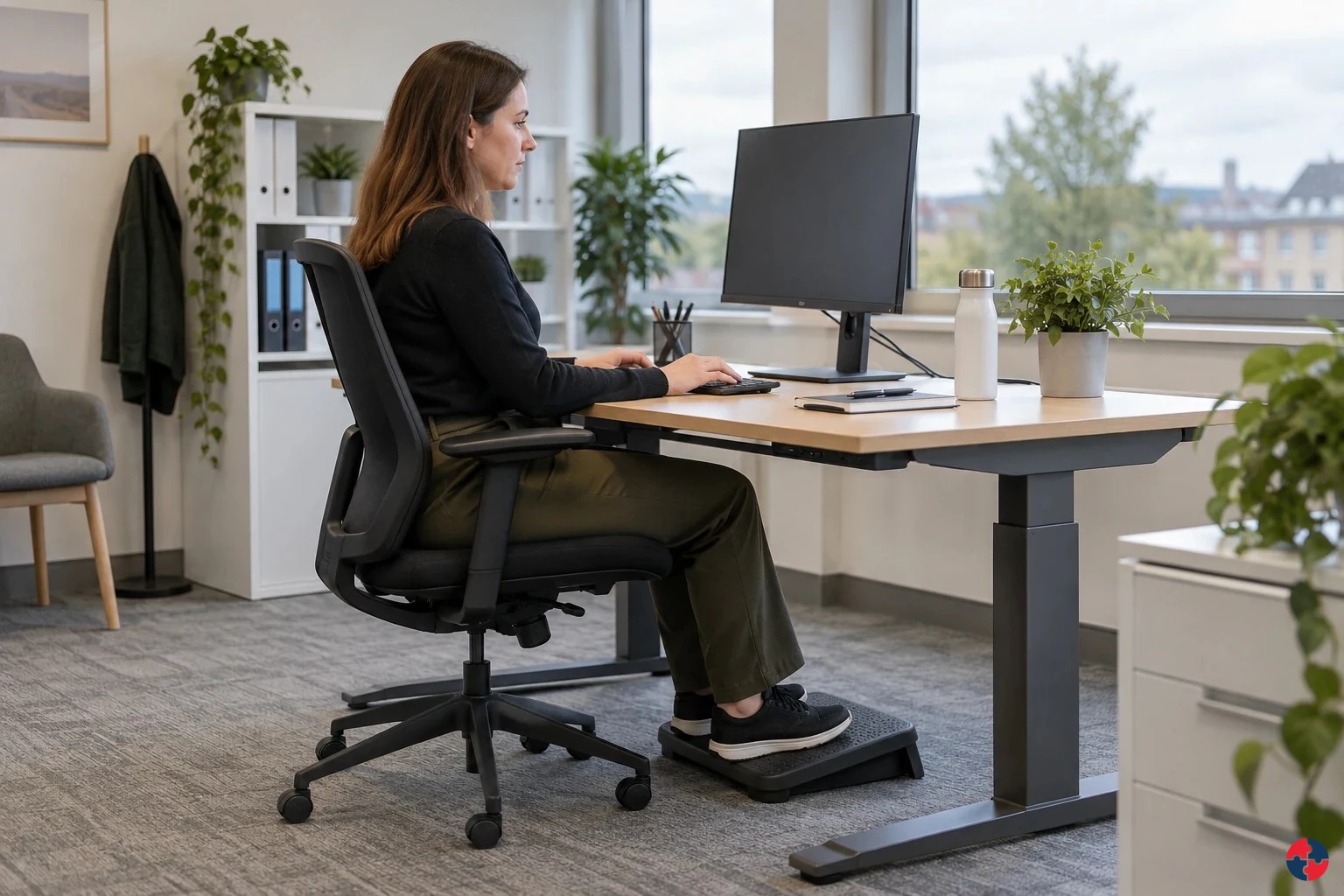
Close the actions from the workstation assessment
Workstation assessment should lead to practical equipment and work changes. Include the task, posture, screen, input devices, lighting and changes of activity. Recheck home and office arrangements where both are regularly used.
Turn display screen equipment (dse) knowledge into a decision
Display Screen Equipment (DSE) is any work with screens such as desktop computers, laptops, tablets, smartphones and screen-based control or monitoring systems where regular use can affect comfort, musculoskeletal health, visual fatigue and mental workload. Great Britain and Northern Ireland have separate DSE regulations. DSE user register, assessment completion rate and symptom trend log.
Resolve laptop-only work at two regular locations
The manager asks about the work task and difficulty, then arranges a user trial and action owner. The equipment must fit the person and available workspace. Persistent symptoms use the agreed support route; the manager does not diagnose them.
DSE health effects and causes
Neck and shoulder pain: Screen too low or high, laptop use, shrugged shoulders, poor chair or reaching. Back pain: Poor chair support, slumped posture, no movement, desk height mismatch. Wrist, hand or arm symptoms: Poor mouse position, excessive grip, unsupported forearms, repeated input.
Choose controls for display screen equipment (dse)
Elimination: Remove duplicate screen entry and unnecessary prolonged desk tasks from the workflow. Engineering controls: Replace laptop-only work with a suitable separate display and input arrangement after trying it with the user. Engineering controls: Provide a usable work area separated from storage and trip hazards so the worker can change posture safely. Engineering controls: Adjust chair, screen, keyboard and desk to the user and task; provide a suitable docking arrangement at both regular locations. Administrative controls: Plan changes of activity and manageable meeting blocks; agree a route for reporting symptoms and reviewing adjustments. Read the full control table for qualifications, ownership and verification. Use the actual task and applicable jurisdiction; existing technical approval remains unchanged.
Use the full display screen equipment (dse) lesson
Use the full topic for the decision points, practical examples, detailed control tables and source scope. HSE guidance applies to Great Britain; use HSENI for the Northern Ireland route and the source’s stated jurisdiction. A simplified guide does not change the page’s technical-review or approval status.

Read all six steps as text
1. Close the actions from the workstation assessment
A completed assessment starts the improvement; it does not prove the setup works.
- Assess: Observe the actual screen task and ask the user about difficulties.
- Change: Adjust equipment and work organisation for the user and regular locations.
- Recheck: Give each action an owner and verify the result with the user.
Workstation assessment should lead to practical equipment and work changes. Include the task, posture, screen, input devices, lighting and changes of activity. Recheck home and office arrangements where both are regularly used.
Apply it: Which agreed action is still open, and what prevents the user working comfortably today?
2. Turn display screen equipment (dse) knowledge into a decision
Use the evidence to improve the actual work arrangement.
- Change at source: Remove duplicate screen entry and unnecessary prolonged desk tasks from the workflow.
- Make it observable: If the hazardous step remains, keep it within the task assessment and select the stronger feasible remaining controls.
- Keep useful evidence: DSE user register, assessment completion rate and symptom trend log.
Display Screen Equipment (DSE) is any work with screens such as desktop computers, laptops, tablets, smartphones and screen-based control or monitoring systems where regular use can affect comfort, musculoskeletal health, visual fatigue and mental workload. Great Britain and Northern Ireland have separate DSE regulations. DSE user register, assessment completion rate and symptom trend log.
Apply it: What evidence would show that the change improves this task, rather than only completing a record?
3. Resolve laptop-only work at two regular locations
Example: a hybrid worker reports neck and wrist discomfort.
- Find: The worker uses a laptop alone for prolonged screen work.
- Change: Trial a suitable display, separate input devices and an adjustable setup.
- Review: Check both regular locations and agree changes of activity.
The manager asks about the work task and difficulty, then arranges a user trial and action owner. The equipment must fit the person and available workspace. Persistent symptoms use the agreed support route; the manager does not diagnose them.
Apply it: Does the arrangement remain usable at both regular work locations?
4. DSE health effects and causes
Connect the task, the route to the person and the control that can fail.
- Neck and shoulder pain: Screen too low or high, laptop use, shrugged shoulders, poor chair or reaching.
- Back pain: Poor chair support, slumped posture, no movement, desk height mismatch.
- Wrist, hand or arm symptoms: Poor mouse position, excessive grip, unsupported forearms, repeated input.
Neck and shoulder pain: Screen too low or high, laptop use, shrugged shoulders, poor chair or reaching. Back pain: Poor chair support, slumped posture, no movement, desk height mismatch. Wrist, hand or arm symptoms: Poor mouse position, excessive grip, unsupported forearms, repeated input.
Apply it: Who could be exposed, including other trades, cleaners, maintainers and people nearby?
5. Choose controls for display screen equipment (dse)
Start with the stronger practicable options and verify their effect.
- Elimination: Remove duplicate screen entry and unnecessary prolonged desk tasks from the workflow.
- Engineering controls: Replace laptop-only work with a suitable separate display and input arrangement after trying it with the user.
- Engineering controls: Provide a usable work area separated from storage and trip hazards so the worker can change posture safely.
- Engineering controls: Adjust chair, screen, keyboard and desk to the user and task; provide a suitable docking arrangement at both regular locations.
- Administrative controls: Plan changes of activity and manageable meeting blocks; agree a route for reporting symptoms and reviewing adjustments.
Elimination: Remove duplicate screen entry and unnecessary prolonged desk tasks from the workflow. Engineering controls: Replace laptop-only work with a suitable separate display and input arrangement after trying it with the user. Engineering controls: Provide a usable work area separated from storage and trip hazards so the worker can change posture safely. Engineering controls: Adjust chair, screen, keyboard and desk to the user and task; provide a suitable docking arrangement at both regular locations. Administrative controls: Plan changes of activity and manageable meeting blocks; agree a route for reporting symptoms and reviewing adjustments. Read the full control table for qualifications, ownership and verification. Use the actual task and applicable jurisdiction; existing technical approval remains unchanged.
Apply it: Which stronger option can be used here, and who will verify it before accepting the remaining risk?
6. Use the full display screen equipment (dse) lesson
Follow the official sources below and retain the task-specific evidence.
- Official guidance: HSE - DSE workstations and assessment
- Official guidance: HSE - Working with display screen equipment at home
- Task decision: DSE user register, assessment completion rate and symptom trend log.
Use the full topic for the decision points, practical examples, detailed control tables and source scope. HSE guidance applies to Great Britain; use HSENI for the Northern Ireland route and the source’s stated jurisdiction. A simplified guide does not change the page’s technical-review or approval status.
Apply it: Which official source and full-topic section will you use to resolve the next decision?
A hot-desk change leaves actions open
Illustrative example. A user changes between home and office and cannot reproduce the agreed setup.
Decision. Provide a workable setup and agreed activity changes at the relevant locations.
Evidence to check. User needs, assessment findings, equipment supplied and actions actually completed.
Hold or escalation point. Keep unresolved discomfort or suitability concerns in the action process rather than closing the assessment administratively.
Follow-up. Review the setup with the user after normal use and route workload questions to Digital Wellbeing.
Trial the workstation with the person and task
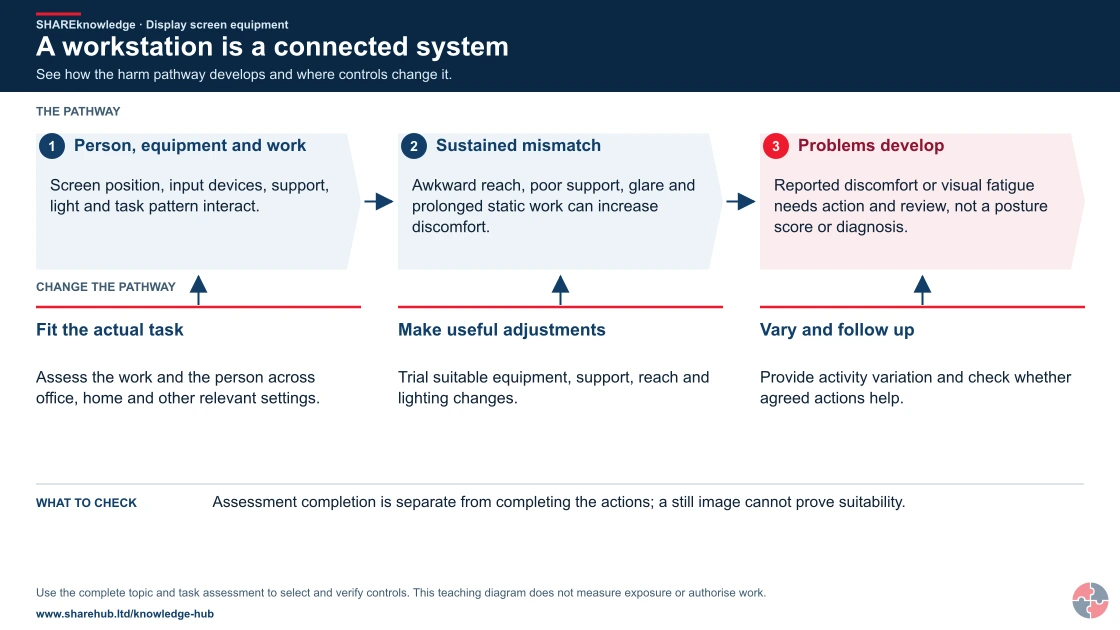
Screen/viewing, inputs/reach, chair/support, lighting and activity variation interact. A diagram is a set of assessment prompts, not a perfect posture prescription.
A workstation is a connected system
Full written explanation
- Person, equipment and work. Screen position, input devices, support, light and task pattern interact.
- Sustained mismatch. Awkward reach, poor support, glare and prolonged static work can increase discomfort.
- Problems develop. Reported discomfort or visual fatigue needs action and review, not a posture score or diagnosis.
Change the pathway
- Fit the actual task. Assess the work and the person across office, home and other relevant settings.
- Make useful adjustments. Trial suitable equipment, support, reach and lighting changes.
- Vary and follow up. Provide activity variation and check whether agreed actions help.
Evidence check: Assessment completion is separate from completing the actions; a still image cannot prove suitability.


Fit the task
Assess what the person does, how long, the equipment and available space.
Trial adjustments
Check viewing, reach, support, leg room and glare with the user; give each needed action an owner.
Review use
Provide usable changes of activity and review discomfort and actual use after the trial, including shared or home workstations.
No single angle, chair setting or posture can be copied as universally correct.
What key facts should people know first about DSE?
DSE risk is controlled by fitting the work to the person, not by telling the person to tolerate a poor setup.
A DSE assessment should look at the whole workstation: screen, keyboard, mouse, chair, desk, foot support, document use, software, lighting, glare, space, temperature, noise, work routine and individual needs. The screen is only one part of the system.
Poor DSE arrangements usually harm people gradually. Early aching, tingling, eye strain, headaches or fatigue should be treated as useful warning signs. Waiting until the worker has chronic pain is poor management and can make a simple adjustment become a long-term health issue.
Home working and laptop use are not exemptions. If a laptop is used for prolonged work, the setup normally needs to be improved with a separate keyboard and mouse and either a raised laptop screen or separate monitor. See HSE - Working safely with display screen equipment.
| Key fact | Practical meaning |
|---|---|
| DSE users need assessment | Regular users should have a suitable and sufficient workstation assessment. Sources: HSE - Working safely with display screen equipment. |
| The workstation is wider than the screen | Furniture, input devices, software, lighting and the surrounding environment all matter. Sources: HSE - Working safely with display screen equipment. |
| Breaks can be changes of activity | A user may not need to stop working completely, but they should interrupt prolonged screen use. Sources: HSE - Working safely with display screen equipment. |
| Eye tests are an entitlement | DSE users can request an eye and eyesight test paid for by the employer. Sources: HSE - Working safely with display screen equipment. |
| Symptoms need early action | Pain, tingling, numbness, headaches and eye strain should trigger review. Sources: HSE - Working safely with display screen equipment. |
| A form is not enough | Actions, equipment changes, training and follow-up are what reduce risk. Sources: HSE - Working safely with display screen equipment. |
How can I practise this topic in 3D?
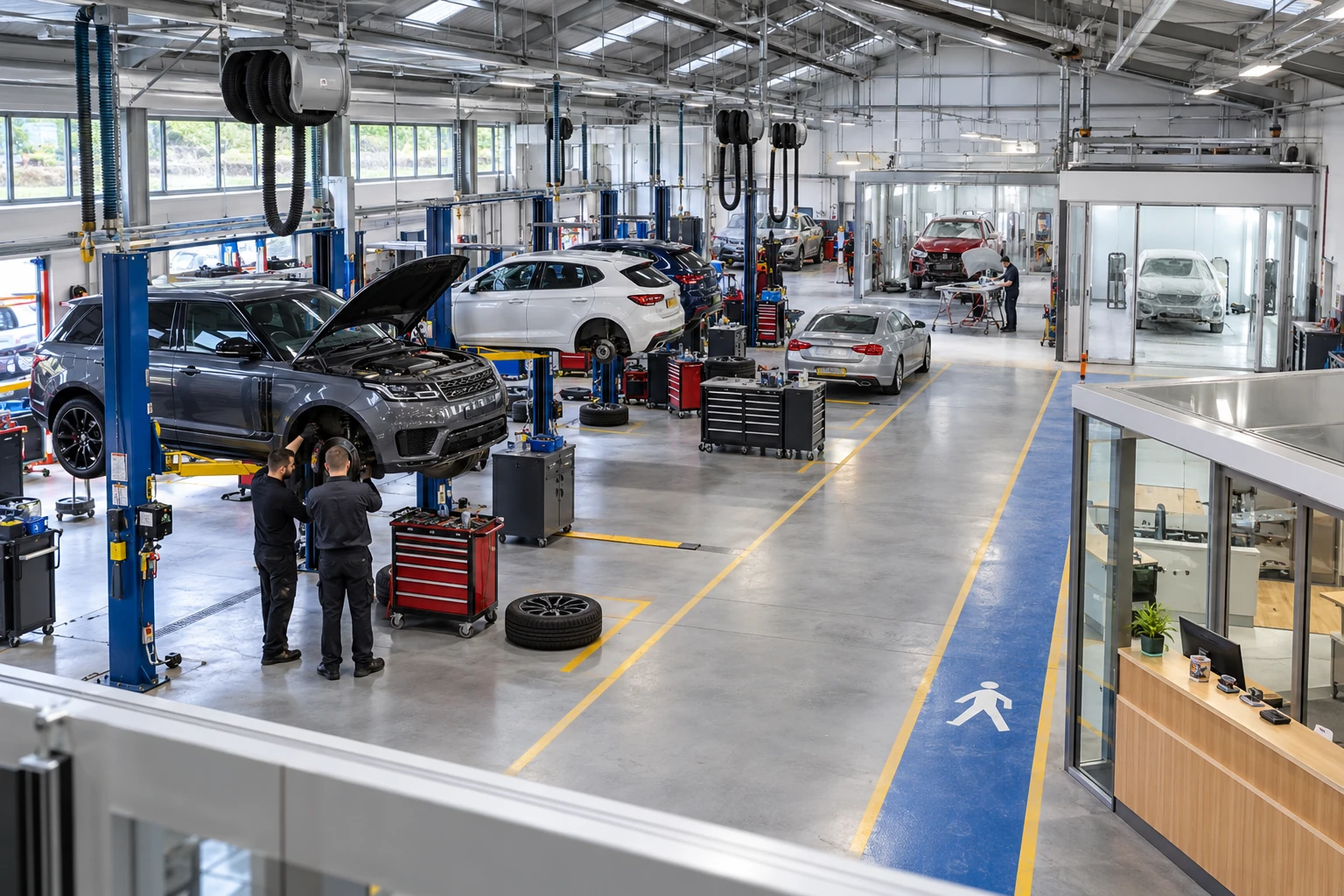

DSE: a cramped estimating workstation

DSE, cramped reach and seasonal window glare

Fatigue, glare and poor welfare undermine a critical task
All related inspection points 8 across 5 locations
Garage workshop 4 inspection points
Construction site 1 inspection point
Crown Fuels terminal 1 inspection point
Warehouse walkabout 1 inspection point
Aerosystems Engineering 1 inspection point
Practice in the SHAREhub environment. Browser practice is separate from workplace competence and formal learning records.
What is Display Screen Equipment?
Display Screen Equipment is work equipment with an alphanumeric or graphic display screen used for work.
DSE includes ordinary office screens, laptops, tablets, smartphones, multi-screen workstations, touchscreens, handheld devices and screen-based monitoring systems. It can appear in offices, warehouses, vehicles, reception desks, control rooms, home offices, leisure venues, healthcare settings, laboratories and construction management cabins.
The legal definition is broad because the risk is not tied to one type of technology. The same health mechanisms can arise from a desktop monitor, a laptop on a kitchen table, a tablet used for stock checks or a control-room screen if the person uses it for long periods without good setup, variation and recovery.
The specific GB DSE instrument has exclusions, including portable systems not in prolonged use, screens mainly intended for public operation, and some small data or measurement displays. A phone or tablet used for prolonged work should still be assessed against the actual statutory definition; excluded equipment can still create risks under wider health and safety duties.
Some equipment and occasional use may fall outside the specific DSE Regulations, but employers still have wider duties to manage health and safety risks from work equipment, work design and work environment. See HSE - Working safely with display screen equipment; Work with display screen equipment L26 (PDF).
| DSE example | Where it appears | Common concerns |
|---|---|---|
| Desktop workstation | Offices, reception areas, control rooms and admin centres. | Chair adjustment, monitor height, keyboard/mouse position, glare and breaks. Sources: HSE - Working safely with display screen equipment. |
| Laptop | Hybrid work, site cabins, meetings, travel and home working. | Low screen height, cramped keyboard, trackpad use, prolonged static posture. Sources: HSE - Working safely with display screen equipment. |
| Tablet or smartphone | Mobile work, inspections, retail, healthcare and logistics. | Neck flexion, thumb strain, small text, outdoor glare and prolonged hand-held use. Sources: HSE - Working safely with display screen equipment. |
| Multiple monitors | Finance, control rooms, design, dispatch and security. | Twisting, visual load, screen priority and desk layout. Sources: HSE - Working safely with display screen equipment. |
| Screen-based control equipment | Production lines, plant rooms, leisure facilities and monitoring stations. | Visual fatigue, alarm response, seating and cognitive workload. Sources: HSE - Working safely with display screen equipment. |
Who counts as a DSE user?
A DSE user is someone who habitually uses DSE as a significant part of normal work.
HSE describes DSE users as workers who use display screen equipment daily for continuous periods of an hour or more. This is a practical test, not a job-title test. A person may be a DSE user even if they are mobile, hybrid, part-time or based outside a conventional office.
Other indicators include dependence on the screen to do the job, little choice about using it, high concentration, fast data input, high accuracy requirements, specialist software and work where errors or delays matter. A finance worker, booking adviser, designer, dispatcher, remote manager and control-room operator may all be DSE users.
The employer should identify users during onboarding, role change, new software introduction, move to home working, hot-desking changes and after a worker reports discomfort. See HSE - DSE workstations and assessment.
| Indicator | What it means | Management response |
|---|---|---|
| Daily screen use | The person uses DSE as a normal part of work. | Provide assessment, information and training. Sources: HSE - DSE workstations and assessment. |
| Continuous periods of an hour or more | The person has prolonged screen exposure. | Plan breaks or changes of activity. Sources: HSE - DSE workstations and assessment. |
| High dependence on DSE | The job cannot realistically be done without the screen or software. | Assess the workstation and software usability. Sources: HSE - DSE workstations and assessment. |
| High concentration or accuracy | Errors matter and the work may be mentally demanding. | Review workload, breaks, interface and fatigue. Sources: HSE - DSE workstations and assessment. |
| Mobile or home use | The worker may use screens away from a standard desk. | Assess practical setup and provide suitable equipment. Sources: HSE - DSE workstations and assessment. |
How can poor DSE management harm health?
Poor DSE management can lead to musculoskeletal discomfort, visual fatigue, headaches, stress and reduced wellbeing.
Musculoskeletal disorders can develop when people hold awkward or static postures, reach for a mouse, twist to view a screen, work with unsupported forearms, use a laptop flat on a desk, sit without lower-back support or repeat small hand movements for long periods. Symptoms can start as mild discomfort and become persistent pain if the cause is not addressed.
Visual fatigue is usually linked to demanding close work, poor screen position, glare, small text, poor contrast, dry air, uncorrected vision and insufficient changes of focus. DSE work is not generally treated as causing permanent eye damage, but it can cause real discomfort and reveal eyesight problems that need correction.
Mental fatigue and stress can also be connected to screen work. Constant notifications, poor software, time pressure, lack of control, video-call overload, remote isolation and an always-on culture can increase cognitive load and make physical symptoms worse. See HSE - Working safely with display screen equipment.
| Health effect | Common causes | Early warning signs |
|---|---|---|
| Neck and shoulder pain | Screen too low or high, laptop use, shrugged shoulders, poor chair or reaching. | Aching, stiffness, headaches and tension. Sources: HSE - Working safely with display screen equipment. |
| Back pain | Poor chair support, slumped posture, no movement, desk height mismatch. | Lower-back ache, discomfort after sitting and reduced mobility. Sources: HSE - Working safely with display screen equipment. |
| Wrist, hand or arm symptoms | Poor mouse position, excessive grip, unsupported forearms, repeated input. | Tingling, numbness, weakness, pain or swelling. Sources: HSE - Working safely with display screen equipment. |
| Eye strain | Glare, small text, poor contrast, screen too close/far, no visual breaks. | Tired eyes, headaches, blurred vision or dryness. Sources: HSE - Working safely with display screen equipment. |
| Mental fatigue | High workload, poor software, interruptions, remote isolation and no recovery. | Reduced concentration, irritability, mistakes and exhaustion. Sources: HSE - Working safely with display screen equipment. |
How should a DSE workstation assessment be carried out?
A DSE assessment should identify the user, examine the whole workstation, agree actions and check that those actions work.
The HSE CK1 checklist is a useful structure because it prompts checks across keyboard, mouse, display screen, software, furniture and work environment. The checklist should not be treated as the end point. Someone competent should review answers, challenge unclear responses, prioritise actions, and follow up with the user.
Good assessments combine self-assessment with active support. Most users can identify obvious discomfort, glare, chair problems or laptop issues, but they may not know the best adjustment or equipment option. A trained assessor can turn a complaint into a practical solution.
A checklist score is only a starting point. A trained reviewer should resolve doubtful answers, agree a change with the worker and verify that the change removed the difficulty; a closed ticket without a worker check is weak evidence.
Assessment should be repeated when there is a new workstation, new user, move to home working, hot-desk change, new equipment, new software, pregnancy, disability, health change, symptom report or significant change in work pattern. See HSE - DSE workstations and assessment.
| Step | What to do | Evidence |
|---|---|---|
| 1. Identify users | Decide who habitually uses DSE as a significant part of work. | DSE user list or role map. Sources: HSE - DSE workstations and assessment. |
| 2. Gather information | Ask the user about tasks, duration, symptoms, equipment, environment and work routine. | Completed assessment or interview notes. Sources: HSE - DSE workstations and assessment. |
| 3. Check the workstation | Review screen, keyboard, mouse, chair, desk, space, lighting, software and breaks. | Assessment findings and photographs where appropriate. Sources: HSE - DSE workstations and assessment. |
| 4. Decide actions | Provide adjustment, training, equipment, repairs, eye test or specialist support. | Action plan with owner and due date. Sources: HSE - DSE workstations and assessment. |
| 5. Close actions | Confirm changes have been made and the user understands how to use them. | Closure record and user feedback. Sources: HSE - DSE workstations and assessment. |
| 6. Review | Reassess after changes, symptoms or periodic review. | Review date and trend analysis. Sources: HSE - DSE workstations and assessment. |
Complete your DSE workstation assessment online
Complete the office or home DSE assessment online, using a rotatable 3D person and workstation with 28 checks across eight areas. Explore combined setup problems, illustrative red discomfort areas and glare, compare stills from the same model, record follow-up actions and download your assessment for a trained assessor to review.
Work through your actual setup
- Choose office or home. Assess each place separately. Use the actual workstation and tasks you normally do.
- Check all eight areas. Rotate the workstation to inspect it from every side, then use the numbered points or area buttons. Use the checkboxes below the 3D view to explore setup problems and possible discomfort areas, including glare. Compare an adjusted example, or open “See problem and improvement” for stills from the same model. Select “Not sure” when you need help.
- Listen to the reasons. Use Listen beneath the model to hear the current area's explanation and the selected setup problems in Daniel's British voice. The full transcript stays available.
- Try the changes. Use the guidance below to adjust what you can, recheck it during real work and record anything still needing help.
- Review and download. Add the comfort response, review the action summary, agree owners and dates with your assessor, then download the office and/or home PDF before leaving.
Your report stays with you. Answers remain only in the open activity; they are not saved to an account or submitted to an employer. Download before refreshing or closing. The full-page version opens a separate session, so download existing answers before moving to it.
Assessor follow-up: The score prioritises the concerns you record. It does not diagnose symptoms, approve the workstation or replace a trained assessor’s review. Report discomfort and unresolved problems through your workplace process.
Illustrated walkthrough: the same eight assessment areas
Open each area to compare a possible problem with a practical improvement. Try the change and use the check to see whether it works for you and your task.
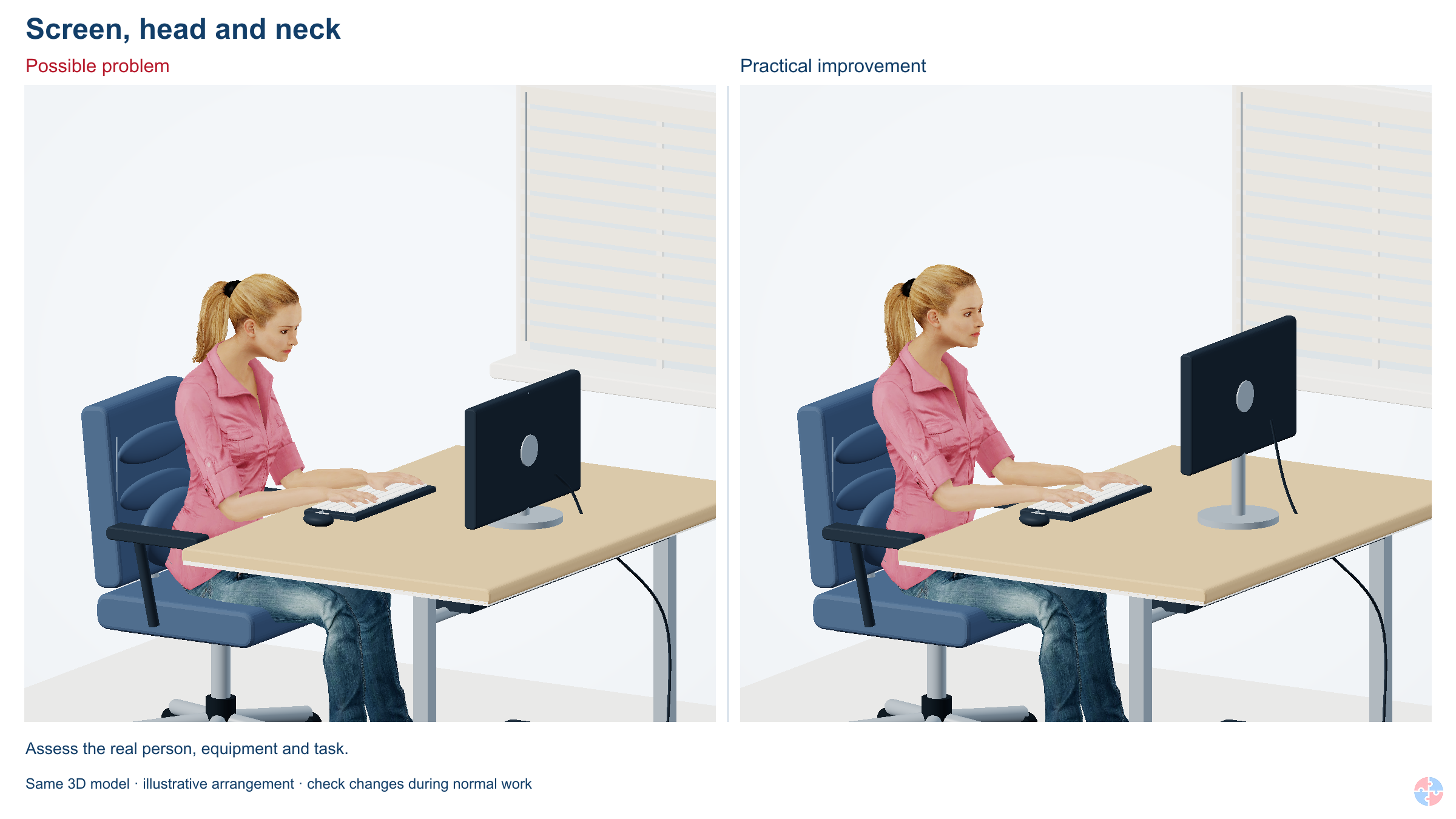
1. Screen, head and neck

How discomfort can arise: A low or off-centre display can encourage sustained neck bending or turning. Small text may lead to leaning forwards.
What to improve: Centre the main display. Adjust its height, distance and text size so you can read with your head balanced. The top of the display is usually around eye level; adapt this for your vision and lenses.
Check the change: Try your real reading task. Can you see comfortably without lifting your chin, leaning or twisting?
2. Shoulders, arms and wrists

How discomfort can arise: Reaching for a mouse or working with raised shoulders and bent wrists can contribute to upper-limb discomfort.
What to improve: Keep the keyboard and pointer close. Adjust chair and working height so your shoulders relax and forearms are broadly level. Keep wrists comfortably aligned and use a light touch.
Check the change: Try typing and pointing. Can you bring your elbows near your body without leaning or resting on a hard edge?
3. Chair and lower-back support

How discomfort can arise: An unstable chair or one that cannot support the user can make it hard to maintain a comfortable, changeable sitting position.
What to improve: Use a stable chair suited to the person and task. Adjust its height and backrest, support the lower back and leave clearance behind the knees. Make sure armrests do not prevent close access.
Check the change: Can you operate the adjustments, sit back comfortably and change position?
4. Feet, legroom and working space

How discomfort can arise: Unsupported feet, restricted legroom or a crowded work surface can encourage awkward positions and prevent movement.
What to improve: Support both feet on the floor or a suitable footrest. Clear the space under the desk and arrange enough working area for the actual task.
Check the change: Can you move your legs and change position freely while remaining supported?
5. Lighting and environment

How discomfort can arise: Reflections, unsuitable lighting, distracting noise and uncomfortable conditions can increase visual effort and make the task harder.
What to improve: Control reflections and balance lighting for screen and paper work. Review temperature, ventilation, noise and the safety of the surrounding space.
Check the change: Look at the display in typical daylight and during normal work. Does glare or the room make you change position?
6. Work routine and software

How discomfort can arise: Long unvaried spells of screen work can increase fatigue. A well-adjusted desk does not resolve a workload that prevents breaks or movement.
What to improve: Plan frequent short breaks or genuinely different tasks. Vary position and movement. Make sure software and the pace of work support the task.
Check the change: Check a normal busy day, not only an ideal day. Can you actually take the planned changes of activity?
7. Laptop and shared-desk arrangements

How discomfort can arise: A laptop joins screen and keyboard together. Raising one also raises the other, so prolonged use often needs separate input devices or a separate display.
What to improve: For sustained laptop work, separate screen height from keyboard height using suitable equipment. Adjust each shared desk before use. Review the home setup independently.
Check the change: Can you read and type comfortably at the same time in each place you use?
8. Comfort, information and follow-up

How discomfort can arise: The user's experience matters. A diagram or a low score cannot identify the cause of pain or replace assessment of individual needs.
What to improve: Report concerns early, obtain help with adjustments and arrange assessor review. Record who will resolve each problem and check whether the change works.
Check the change: Has the user tried the change in the real task, and does the assessor have enough information to close the action?
How can the hierarchy of controls reduce posture and screen-work strain at home and in the office?
Start by removing avoidable repetitive screen work and redesigning the task, then provide adjustable equipment and a workable activity pattern; individual symptoms and needs govern the final setup.
In a call centre, automate duplicate entry where safe, adjust workstation and schedule non-screen tasks. A reception team may need a different approach because the screen and customer interface cannot be removed; verify the actual desk and shift pattern. Neither ordinary glasses nor PPE is a substitute for an effective workstation assessment.
How can the ERICPD hierarchy of controls reduce posture and screen-work strain at home and in the office?

| Control level | Control for this activity | Owner and verification | Stop / restart decision |
|---|---|---|---|
| Eliminate | Remove duplicate screen entry and unnecessary prolonged desk tasks from the workflow. | Task owner verifies that the proposed change removes the named hazardous step, including foreseeable cleaning, maintenance and work transferred elsewhere. | If the hazardous step remains, keep it within the task assessment and select the stronger feasible remaining controls. |
| Reduce, including substitution | Replace laptop-only work with a suitable separate display and input arrangement after trying it with the user. | The user trials the actual display, keyboard, pointing device and docking arrangement at both regular locations; the manager checks that adjustments and task changes remain usable. | Reject an alternative if its performance is unproved or its new hazards are unresolved. |
| Isolate | Provide a usable work area separated from storage and trip hazards so the worker can change posture safely. | Supervisor checks the actual boundary, affected people and connected work; verify separation or isolation before allowing access. | Hold or stop for worsening symptoms, unusable equipment or work patterns that prevent agreed adjustments. |
| Control: physical safeguards | Adjust chair, screen, keyboard and desk to the user and task; provide a suitable docking arrangement at both regular locations. | Competent equipment/process owner checks both workstation assessments, equipment adjustment and realistic activity changes. | Hold or stop for worsening symptoms, unusable equipment or work patterns that prevent agreed adjustments. |
| Control: work method and response | Plan changes of activity and manageable meeting blocks; agree a route for reporting symptoms and reviewing adjustments. | Supervisor confirms the work limits, competent cover, communication and stop/restart authority with the people doing this activity. | Hold work when the agreed limits, competent cover or effective communication cannot be maintained. |
| PPE | No PPE prevents posture-related back pain; suitable seating and task design belong to workplace controls. | Assessor confirms whether personal protection is needed and checks suitability, condition, compatibility and any required fit evidence. | Do not use unsuitable protection or rely on PPE to continue after an essential source control fails. |
| Discipline | Check adjustments after location, equipment or workload changes and confirm that the agreed breaks remain possible. | Release only after worker and manager confirm a workable setup and review date. Retain verification and unresolved restrictions at handover. | Keep the task on hold until required reinstatement evidence and unresolved defects are accepted by the responsible owner. |
How can the ISO 45001 hierarchy of controls reduce posture and screen-work strain at home and in the office?

| Control level | Control for this activity | Owner and verification | Stop / restart decision |
|---|---|---|---|
| Elimination | Remove duplicate screen entry and unnecessary prolonged desk tasks from the workflow. | Task owner verifies that the proposed change removes the named hazardous step, including foreseeable cleaning, maintenance and work transferred elsewhere. | If the hazardous step remains, keep it within the task assessment and select the stronger feasible remaining controls. |
| Engineering controls | Replace laptop-only work with a suitable separate display and input arrangement after trying it with the user. | The user trials the actual display, keyboard, pointing device and docking arrangement at both regular locations; the manager checks that adjustments and task changes remain usable. | Reject an alternative if its performance is unproved or its new hazards are unresolved. |
| Engineering controls | Provide a usable work area separated from storage and trip hazards so the worker can change posture safely. | Supervisor checks the actual boundary, affected people and connected work; verify separation or isolation before allowing access. | Hold or stop for worsening symptoms, unusable equipment or work patterns that prevent agreed adjustments. |
| Engineering controls | Adjust chair, screen, keyboard and desk to the user and task; provide a suitable docking arrangement at both regular locations. | Competent equipment/process owner checks both workstation assessments, equipment adjustment and realistic activity changes. | Hold or stop for worsening symptoms, unusable equipment or work patterns that prevent agreed adjustments. |
| Administrative controls | Plan changes of activity and manageable meeting blocks; agree a route for reporting symptoms and reviewing adjustments. | Supervisor confirms the work limits, competent cover, communication and stop/restart authority with the people doing this activity. | Hold work when the agreed limits, competent cover or effective communication cannot be maintained. |
| PPE | No PPE prevents posture-related back pain; suitable seating and task design belong to workplace controls. | Assessor confirms whether personal protection is needed and checks suitability, condition, compatibility and any required fit evidence. | Do not use unsuitable protection or rely on PPE to continue after an essential source control fails. |
| Administrative controls | Check adjustments after location, equipment or workload changes and confirm that the agreed breaks remain possible. | Release only after worker and manager confirm a workable setup and review date. Retain verification and unresolved restrictions at handover. | Keep the task on hold until required reinstatement evidence and unresolved defects are accepted by the responsible owner. |
What does a good DSE workstation look like?
A good workstation lets the user work in a supported, neutral and varied posture without avoidable strain.
The chair should support the lower back, allow seat-height adjustment and let the user place feet flat on the floor or a footrest. The desk should provide enough space for the screen, keyboard, mouse, documents and forearm support without forcing twisting or reaching.
The screen should normally be directly in front of the user, at about arm's length, with the top of the screen around eye level or slightly below. The keyboard should allow relaxed shoulders and elbows around a comfortable angle. The mouse should be close to the keyboard and used without reaching.
The work environment matters. Lighting should allow the screen to be read without glare or reflections. The user should have space to change position. Noise, temperature and airflow should not create discomfort or concentration problems. See HSE - Good posture when using DSE.
| Component | Good practice | Poor signs |
|---|---|---|
| Chair | Adjustable height, stable base, lower-back support and comfortable seat depth. | User perches, slumps, cannot reach floor or has no back support. Sources: HSE - Good posture when using DSE. |
| Screen | Directly in front, readable, stable, glare controlled and around arm's length. | Screen too low, too high, off to one side, flickering or reflecting windows. Sources: HSE - Good posture when using DSE. |
| Keyboard | Separate where needed, flat enough for neutral wrists and just below elbow height. | Wrists bent sharply, keyboard too far away or laptop keyboard used for long periods. Sources: HSE - Good posture when using DSE. |
| Mouse or input device | Close to the body, same level as keyboard, suitable size and used with relaxed grip. | Reaching, gripping, shoulder tension or repeated wrist deviation. Sources: HSE - Good posture when using DSE. |
| Desk and space | Enough room for equipment, documents, legs and position changes. | Clutter, twisting, cramped legs or no forearm support. Sources: HSE - Good posture when using DSE. |
| Environment | Suitable lighting, glare control, temperature, noise and airflow. | Reflections, eye strain, draughts, overheating or poor concentration. Sources: HSE - Good posture when using DSE. |
How should laptops, tablets and mobile DSE be managed?
Portable devices need extra control when they are used for prolonged or intensive work.
A laptop is convenient but ergonomically compromised because the screen and keyboard are joined. If the screen is high enough, the keyboard is too high; if the keyboard is comfortable, the screen is too low. For prolonged use, the usual solution is a laptop riser or separate monitor plus separate keyboard and mouse.
Tablets and smartphones create different problems: small screens, small text, neck flexion, thumb repetition, outdoor glare, handheld posture and difficulty entering large amounts of text. They may be fine for short tasks but poor for prolonged report writing, data entry or monitoring.
Mobile work should be designed so that people do not spend long periods typing in vehicles, balancing devices on knees, using screens while walking, or carrying out complex data entry in poor lighting or weather. See HSE - Good posture when using DSE.
| Device or use | Risk | Control |
|---|---|---|
| Laptop used all day | Low screen, cramped keyboard, neck flexion and wrist strain. | Provide riser or separate screen, keyboard, mouse and suitable chair/desk. Sources: HSE - Good posture when using DSE. |
| Tablet inspections | Neck flexion, glare and thumb/hand strain. | Limit text entry, use stylus or voice where suitable, enlarge text and plan breaks. Sources: HSE - Good posture when using DSE. |
| Smartphone email work | Small screen, thumb repetition and always-on pressure. | Use for short tasks only and move sustained work to a suitable workstation. Sources: HSE - Good posture when using DSE. |
| Vehicle-based screen work | Poor posture, vibration, distraction and unsafe location. | Do not work while driving; provide safe stopping locations and suitable equipment. Sources: HSE - Good posture when using DSE. |
| Hot-desking | Poor adjustment and inconsistent setup. | Train users to set up each desk and provide adjustable shared equipment. Sources: HSE - Good posture when using DSE. |
How should breaks and changes of activity be planned?
Breaks should interrupt prolonged DSE work and allow the user to move, change posture and rest visual focus.
The law requires employers to plan work so DSE use is periodically interrupted by breaks or changes of activity. HSE does not set one fixed legal duration for every job because the right pattern depends on the task, intensity and user needs.
Short, frequent interruptions are usually better than long, infrequent breaks. HSE gives 5 to 10 minutes every hour as a common example that is better than 20 minutes every two hours. In many roles, a change of activity such as a meeting, filing task, phone call while standing or short walk can provide the interruption.
Break reminders can help, but they do not remove the employer's responsibility to design the work properly. If workload, staffing or monitoring systems make breaks impossible, the system is not working. See HSE - DSE work routine and breaks.
| Issue | Good practice | Poor practice |
|---|---|---|
| Continuous data entry | Plan short frequent breaks or task rotation. | Expecting uninterrupted input for hours. Sources: HSE - DSE work routine and breaks. |
| Video-call blocks | Schedule gaps, camera breaks and movement between meetings. | Back-to-back calls all day. Sources: HSE - DSE work routine and breaks. |
| High concentration work | Use planned pauses before fatigue affects quality. | Using errors as the first sign of overload. Sources: HSE - DSE work routine and breaks. |
| Remote work | Agree availability, breaks and offline time. | Assuming home workers self-manage without boundaries. Sources: HSE - DSE work routine and breaks. |
| Break software | Use reminders as a prompt and review whether breaks happen. | Installing software but ignoring workload barriers. Sources: HSE - DSE work routine and breaks. |
What are the eyesight and eye-test requirements for DSE?
DSE users are entitled to an eye and eyesight test on request, and basic special corrective appliances if needed solely for DSE work.
DSE work can cause tired eyes, headaches, temporary blurred vision and dry or irritated eyes, particularly where there is glare, poor contrast, small text, poor screen position, uncorrected vision or long periods without looking away from the screen.
Employers should explain the eye-test entitlement clearly. If an optometrist confirms that special glasses are needed specifically for DSE work, the employer must provide a basic pair for that purpose. The employer does not normally have to pay for ordinary glasses used for general vision if they are suitable for DSE work.
Practical controls include screen position, adjustable brightness and contrast, clean screens, glare reduction, suitable lighting, text size adjustment, regular visual breaks and prompt review where headaches or visual discomfort are reported. See HSE - DSE eyes and eyesight testing.
For GB DSE users, HSE eyes and eyesight guidance describes an employer-paid full eye and eyesight test by an optometrist or doctor, including a vision test and eye examination. For example, when an eligible user requests a test, explain the employer’s arrangement and how its cost is covered; do not present a screen-only app or informal desk check as the full test. The test result determines whether special glasses for the screen-viewing distance are needed. The ordinary-prescription limitation above concerns payment for glasses, not payment for the requested test. This example concerns the GB DSE route; check the separate NI provisions for NI workers and seek clinical advice for individual symptoms.
| Issue | Possible cause | Control |
|---|---|---|
| Tired or sore eyes | Long close-focus work and limited visual breaks. | Regular changes of focus and planned pauses. Sources: HSE - DSE eyes and eyesight testing. |
| Headaches | Glare, small text, poor contrast or uncorrected vision. | Adjust screen, lighting and text size; offer eye test. Sources: HSE - DSE eyes and eyesight testing. |
| Dry eyes | Reduced blinking, dry air or prolonged concentration. | Blink reminders, breaks, screen position and environmental review. Sources: HSE - DSE eyes and eyesight testing. |
| Neck pain linked to vision | User leans forward or tilts head to see clearly. | Eye test, screen height, text size and document position. Sources: HSE - DSE eyes and eyesight testing. |
| Glare/reflections | Screen facing windows or bright lights. | Reposition screen, use blinds and adjust lighting. Sources: HSE - DSE eyes and eyesight testing. |
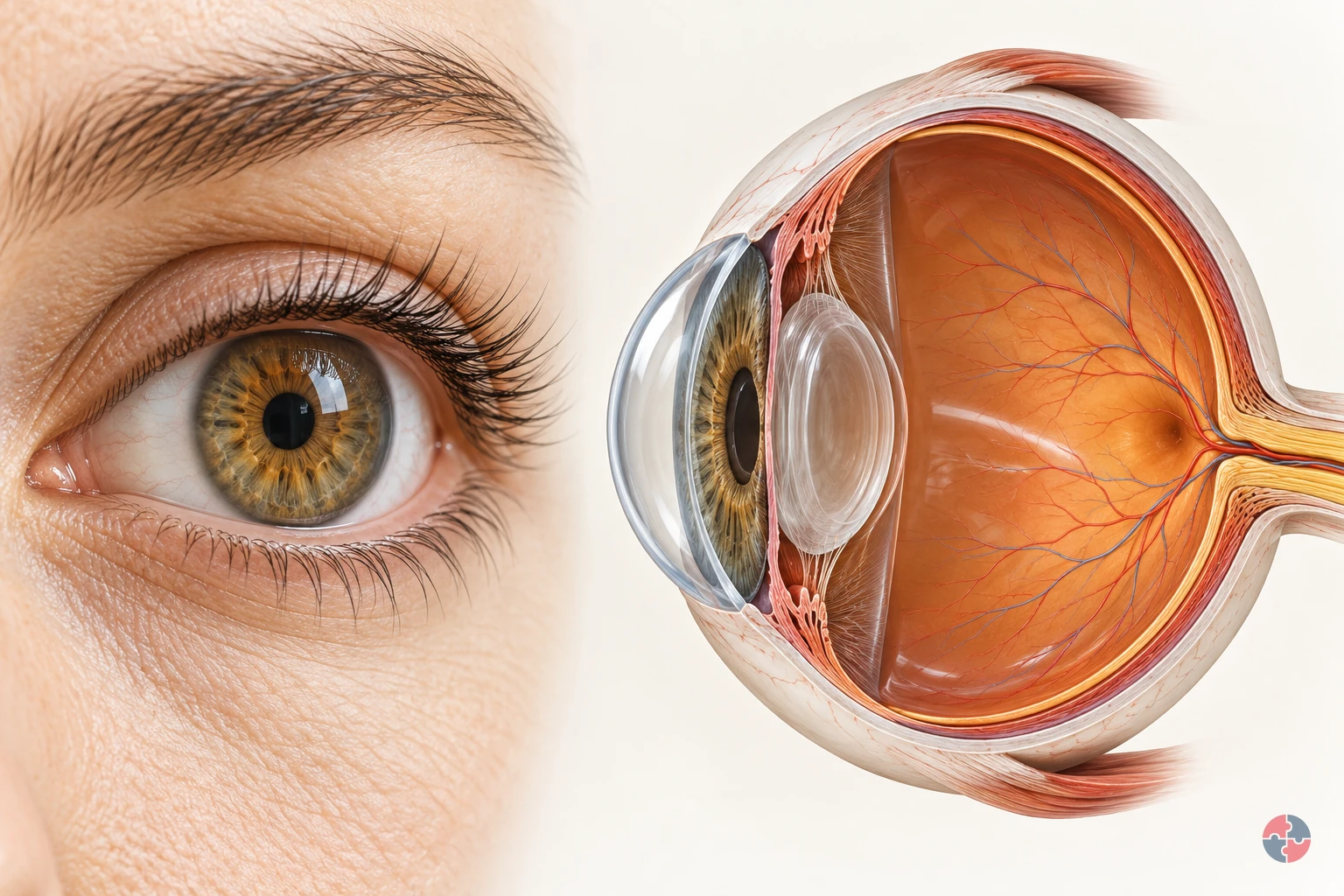
How does the eye turn light into vision, and how do workplace hazards injure it?
Interactive anatomy · Eye function and injury · Updated 2026-10-23
Read all anatomy and process explanations without the viewer
Educational illustration, not a diagnostic symptom checker or a reproduction of an individual’s vision. No acuity/brightness challenge, flashing screen, camera permission, eye-drop prescription, patching instruction, lens-removal manoeuvre or home-neutralisation exercise. Ordinary DSE comfort is separate from trauma; eyesight correction is separate from hazard protection.
Eyelids
Blinking spreads tears over the front of the eye. The eyelids pass over the exposed front of the eye when a person blinks. Their movement spreads the tear film, helping keep that surface moist and smooth. In the surface view, use the lid margins to locate the area they cover. This surface-maintenance role supports the optical pathway; the lid does not carry visual signals to the brain. Moorfields Eye Hospital NHS Foundation Trust: Dry eye: the tear film
Tear film
A thin tear layer keeps the surface moist and smooth. A thin film of tears covers the front of the eye. It lubricates the surface and contributes to a smooth boundary through which light passes. Blinking redistributes this film. Its thickness is enlarged in the teaching view so its position can be seen; it is a surface layer rather than a pool of liquid inside the eyeball. Moorfields Eye Hospital NHS Foundation Trust: Dry eye: the tear film
Cornea
The clear front surface bends incoming light. The transparent cornea forms the curved front of the eye, providing an outer protective boundary and bending incoming light. It works with the lens to focus the light towards the retina. Follow the rays through the front curve in the cutaway, then compare its location with the tear film lying over the surface. Moorfields Eye Hospital NHS Foundation Trust: What makes up your eye
Iris
The coloured ring controls the pupil opening. The iris is the coloured ring around the pupil. Its muscles change the size of the opening and so control how much light can enter the eye. Locate the ring separately from the transparent lens behind it. This light-entry role is different from the focusing work performed by the cornea and lens. Moorfields Eye Hospital NHS Foundation Trust: What makes up your eye
Pupil
An opening lets light enter the eye. The pupil is the central opening in the iris through which light passes. It looks dark when viewed from the front because it opens into the inside of the eye. It is not a solid black disc. In the cutaway, follow the route through this opening towards the transparent lens behind it. Moorfields Eye Hospital NHS Foundation Trust: What makes up your eye
Lens
The clear lens helps focus light on the retina. The transparent lens sits behind the iris and adds to the focusing action of the cornea. In a living eye its shape can change to help focus on objects at different distances. Use the cutaway to locate the lens between the pupil opening and the retina; the simplified ray diagram is not an eyesight test. Moorfields Eye Hospital NHS Foundation Trust: What makes up your eye
Retina
The light-sensitive layer lines the back of the eye. The retina is the light-sensitive tissue lining the inside of the back of the eye. Light focused by the cornea and lens reaches this layer, where specialised cells begin converting it into electrical information. Its position against the inner wall connects the whole-eye view with the separate enlarged photoreceptor inset. Moorfields Eye Hospital NHS Foundation Trust: What makes up your eye · Oxford University Hospitals NHS Foundation Trust: Tackling vision loss: normal signal pathway
Photoreceptors
Specialised retinal cells begin the light-to-signal conversion. Photoreceptors are specialised cells in the retina that respond to light and begin the conversion into electrical signals. Locate the retinal lining first, then connect it with the enlarged cell inset. That inset explains a change of process and scale; it does not represent a separate organ or every cell involved in retinal processing. Oxford University Hospitals NHS Foundation Trust: Tackling vision loss: normal signal pathway
Optic nerve
Visual signals travel from the eye towards the brain. The optic nerve carries electrical information from the retina towards the brain. In the model, the symbol changes from a light ray to a neural signal at the retina to distinguish these processes. Locate where the nerve leaves the back of the eye. Light itself does not travel along the nerve as a beam. Oxford University Hospitals NHS Foundation Trust: Tackling vision loss: normal signal pathway
Brain destination
The brain processes the incoming visual signals. The brain processes the visual information arriving from the eyes, helping us make sense of what we see. This marker shows a destination outside the eyeball rather than a structure within it. Follow the optic-nerve route to the marker after locating the retina; the detailed pathways inside the brain are not depicted here. Oxford University Hospitals NHS Foundation Trust: Tackling vision loss: normal signal pathway
Open the complete process transcript
The process, step by step
1 · Refresh the surface
A blink carries a thin layer of tears across the exposed front of the eye. This tear film keeps the surface moist and helps create a smooth first surface for incoming light. Look at the eyelids and the enlarged tear layer together: the lid spreads the film rather than pushing tears into the eyeball. The surface view separates these structures so their relationship is easier to see. This is the preparation for the optical pathway that follows; a clear view depends on the condition of the front surface as well as the structures deeper inside. Moorfields Eye Hospital NHS Foundation Trust: Dry eye: the tear film
What to watch: Locate the eyelid margins and the thin tear layer in front of the cornea, using the surface view to separate them.
Why it matters: The refreshed film lubricates the front of the eye and helps keep its surface smooth. It supports the passage of light before the cornea and lens focus that light deeper inside.
Explore this step: Select the eyelids, then the tear film, and describe which structure moves and which surface it covers.
2 · Bend incoming light
The cornea is the transparent, curved front of the eye. Incoming light changes direction as it passes through this surface, beginning the focusing process. In the whole-eye cutaway, trace the illustrative rays from outside the eye towards the lens. Their bend shows the cornea doing optical work rather than acting only as a window. The cornea also forms part of the protective outer boundary, so its clarity and shape matter to seeing. The rays simplify the route through a healthy eye; they are not a measurement of an individual person’s focus or vision. Moorfields Eye Hospital NHS Foundation Trust: What makes up your eye
What to watch: Find the clear curved front of the eye and follow where the incoming light rays change direction as they pass through it.
Why it matters: Beginning to direct the light here allows the cornea and lens to work together. A transparent front surface lets light enter while forming part of the eye’s protective boundary.
Explore this step: Trace one ray from outside the cornea to the lens and identify the first place its direction changes.
3 · Focus towards the back
After passing through the cornea, light enters through the pupil, the opening in the coloured iris. The iris changes the size of that opening to control how much light enters. Behind it, the transparent lens works with the cornea to bring light towards the retina at the back. Follow the model from front to back and distinguish the pupil opening from the solid lens. In a living eye the lens can change shape to help focus at different distances. This simplified view explains the route and the relationship between the structures, rather than testing accommodation or eyesight. Moorfields Eye Hospital NHS Foundation Trust: What makes up your eye
What to watch: Identify the iris around the pupil opening, the transparent lens behind it and the light-sensitive retina lining the back of the eye.
Why it matters: Controlling light entry and focusing it are different jobs. Together they allow light to reach the sensitive tissue at the back in a useful pattern for the next stage of vision.
Explore this step: Name the opening light passes through, then the transparent structure it reaches next; follow the route to the retina.
4 · Convert at the retina
The retina is the light-sensitive tissue lining the back of the eye. Its photoreceptor cells respond to light and begin converting it into electrical information. Locate the retinal lining, then use the enlarged cell inset to connect the whole-eye view with this smaller-scale event. The inset makes the conversion easier to discuss without suggesting that the cells are that large inside the eye. At this point the lesson changes from the path of light to the path of a nerve signal. The model does not show every retinal cell or all the processing that takes place between them. Oxford University Hospitals NHS Foundation Trust: Tackling vision loss: normal signal pathway
What to watch: Locate the retina on the inner back wall, then connect it with the enlarged photoreceptor inset outside the whole-eye cutaway.
Why it matters: This conversion connects the eye’s optical system with its nervous system. The focused light pattern can now be represented by signals that travel from the retina towards the brain.
Explore this step: Point to where the light pathway ends and explain why the enlarged cells are an inset rather than another organ.
5 · Carry and interpret the signal
Visual information leaves the retina through the optic nerve and travels towards the brain. The brain processes this incoming information so that we can recognise and make sense of what we see. Follow the model’s neural-signal symbol from the back of the eye to the external brain marker, and compare it with the earlier light rays. The symbols represent different processes: a nerve carries signals, not a beam of light or a miniature picture travelling through a tube. The brain marker identifies the destination outside the eyeball; the detailed visual pathways within the brain are beyond this simplified model. Oxford University Hospitals NHS Foundation Trust: Tackling vision loss: normal signal pathway
What to watch: Find where the optic nerve leaves the back of the eye and trace its route towards the separate brain destination marker.
Why it matters: The earlier stages deliver and convert light; this stage carries the resulting information onwards. Vision therefore depends on the retina, its nerve connection and the brain working with the eye’s optical structures.
Explore this step: Compare the light-ray and neural-signal symbols, then explain what travels through the pupil and what travels through the optic nerve.
Read the practice situations and all answer explanations
Sources and how the model is made
The opening images are AI-generated anatomical illustrations. The interactive 3D models and labelled SVG diagrams use original procedural artwork. These teaching images are not medical scans or diagnostic tools. Source references support the learner explanations and do not grant artwork rights.
- Moorfields Eye Hospital NHS Foundation Trust: What makes up your eye — Normal cornea, iris, pupil, lens and posterior eye layout; use anatomy text selectively. No image copied.
- Moorfields Eye Hospital NHS Foundation Trust: Dry eye: the tear film — Blinking spreads the tear film, which lubricates the eye and supports a smooth surface. No treatment instructions copied.
- Guy’s and St Thomas’ NHS Foundation Trust: Corneal abrasion — A scratch/graze of the cornea and the distinction between a superficial injury and complications; no healing-time promise or eye treatment prescribed.
- NHS: Eye injuries — March 2026 guidance: immediate chemical irrigation and emergency help; high-speed/penetrating injury; severe pain or sight changes. Minimum rinsing time is not a clearance test.
- University Hospitals Dorset NHS Foundation Trust: Chemical injury to the eye — Possible surface/anterior-segment damage only. Printed review date November 2023 is overdue; current emergency actions rely on EY-S4, not this leaflet alone.
- HSE: Health risks from welding: arc-eye — Welding radiation can injure the cornea, cause delayed pain and harm other eye structures; no safe viewing time.
- HSE: Using the right type of PPE — Eye protection must match impact, splash, dust or radiation hazards and fit the task/user.
- Oxford University Hospitals NHS Foundation Trust: Tackling vision loss: normal signal pathway — Photoreceptors convert light to electrical signals, carried through the optic nerve to the brain. Research treatment content is not reused.
- NHS Organ Donation: About cornea donation — Injury or disease can leave the cornea cloudy/distorted and affect vision. Source is factual context, not donation advice in this lesson.
- University Hospital Southampton NHS Foundation Trust: Eye emergency department — Chemical injury, penetrating trauma and severe visual symptoms require emergency eye care. Local opening hours/contact instructions are not generalised.
How should home and hybrid DSE be managed?
Home and hybrid workers need the same risk-management principles as office workers, adapted to the reality of their workspace.
Employers cannot assume home working is safe because the worker chose the location. If the person is a DSE user, the employer should assess the home setup, provide information, consider necessary equipment and act on problems.
Home working can introduce kitchen-table posture, poor chairs, laptop-only setups, lighting problems, cramped space, shared rooms, domestic distractions and always-on digital culture. Some workers may need equipment delivered; others may need advice, alternative work patterns or occupational-health input.
Hybrid working needs practical rules for both ends of the week: how to set up at home, how to adjust hot desks, how to transport laptops safely, how to report discomfort and how to keep assessments current when work location changes. See HSE - Working with display screen equipment at home.
| Area | Good practice | Evidence |
|---|---|---|
| Home assessment | Use a DSE checklist and review user comments, photographs or video support where appropriate. | Completed assessment and action record. Sources: HSE - Working with display screen equipment at home. |
| Equipment | Provide laptop riser, keyboard, mouse, chair, screen or footrest where risk assessment justifies it. | Equipment request and issue log. Sources: HSE - Working with display screen equipment at home. |
| Hot-desking | Provide adjustable chairs/screens and train users to reset each workstation. | Desk setup guidance and local checks. Sources: HSE - Working with display screen equipment at home. |
| Work routine | Set expectations on breaks, meetings, availability and offline time. | Team charter, manager check-ins and workload review. Sources: HSE - Working with display screen equipment at home. |
| Symptoms | Provide a clear route for early discomfort reporting. | Symptom log, assessment review and OH referral where needed. Sources: HSE - Working with display screen equipment at home. |
How do software, procurement and job design affect DSE risk?
Software, equipment purchasing and workload design can create or remove DSE risk before the user ever adjusts a chair.
DSE management is often reduced to furniture, but the way work is designed can be just as important. Poor software can force repetitive clicking, excessive scrolling, awkward keyboard shortcuts, small text, cluttered screens, alert overload, slow response times and workarounds that increase stress and repetition. A technically working system can still be ergonomically poor.
Procurement should therefore consider usability and human factors. Buying a cheap chair, fixed-height desk, small laptop or software platform that frustrates users can transfer cost into sickness absence, discomfort, slower work and manager time. Standard equipment specifications should define minimum chair adjustability, screen size, keyboard and mouse options, docking arrangements, laptop risers, footrests and accessible software settings.
Job design matters because posture is not static. Even an excellent workstation will not protect someone who is expected to sit still for six hours entering data under time pressure. Task rotation, recovery time, natural changes of activity, realistic workload and user involvement should be part of the DSE control system. See HSE - Work with display screen equipment L26.
| Decision area | What good looks like | Risk if ignored |
|---|---|---|
| Chair and furniture standard | Adjustable chairs, suitable desks, adequate space and footrests where needed. | Users improvise with poor posture and delayed equipment fixes. Sources: HSE - Work with display screen equipment L26. |
| Laptop standard | Docking, riser or separate screen, keyboard and mouse for prolonged use. | Laptop-only work leads to neck, shoulder and wrist symptoms. Sources: HSE - Work with display screen equipment L26. |
| Software usability | Readable text, sensible workflow, reduced unnecessary clicks and user testing. | Repetition, stress, errors and workaround behaviour increase. Sources: HSE - Work with display screen equipment L26. |
| Accessibility settings | Zoom, contrast, keyboard navigation and display options are available and understood. | Workers with visual, neurodiversity or disability needs struggle silently. Sources: HSE - Work with display screen equipment L26. |
| Procurement review | HSE, HR, IT and user representatives review DSE implications before rollout. | New technology creates new risks without assessment. Sources: HSE - Work with display screen equipment L26. |
| Workload design | Screen tasks are planned with breaks, variation and achievable workload. | Fatigue, eye strain, stress and errors accumulate. Sources: HSE - Work with display screen equipment L26. |
How should individual needs, pregnancy, epilepsy and symptoms be handled?
Individual needs should trigger a practical review of the workstation, work routine and support required.
DSE assessment should not assume everyone needs the same setup. Body size, disability, pregnancy, epilepsy, visual correction, neurodiversity, previous injuries, migraines, medication, pain conditions and recovery from illness can all change what is suitable. The aim is not to collect unnecessary medical detail; it is to understand what the person needs to work safely and comfortably.
HSE provides specific DSE guidance for pregnancy and epilepsy. Employers should review risk where a worker is pregnant or has epilepsy and there are concerns about screen work, visual triggers, work pattern or fatigue. Many people can work safely with DSE, but the assessment should be responsive rather than dismissive.
For disability-related workstation barriers, check the location-specific equality route: the GB Equality Act or the Northern Ireland Disability Discrimination Act and statutory employment code. Agree practical adjustments with the worker and review whether they remove the disadvantage.
Symptoms should have an escalation route. Early discomfort may be solved by simple adjustment; persistent pain, numbness, tingling, weakness, visual discomfort, migraines or symptoms affecting daily function may need occupational-health advice, GP or medical signposting, equipment review or specialist ergonomic assessment. A competent person should review whether the work arrangement is contributing.
For pregnancy and epilepsy, check HSE - Pregnancy or epilepsy and DSE. Review the actual worker, task and symptoms.
| Trigger | Workplace response | Possible evidence |
|---|---|---|
| New or worsening pain | Review workstation, task duration, equipment and break pattern promptly. | Updated assessment, action plan and follow-up note. Sources: HSE - Working safely with display screen equipment. |
| Tingling, numbness or weakness | Escalate earlier because nerve or tendon problems may worsen if ignored. | OH referral or specialist ergonomic review where appropriate. Sources: HSE - Working safely with display screen equipment. |
| Pregnancy | Review comfort, posture, seating, breaks and work pattern as needs change. | Pregnancy risk review and agreed adjustments. Sources: HSE - Pregnancy or epilepsy and DSE. |
| Epilepsy or screen-related concern | Consider screen settings, flicker, fatigue, workload and medical advice where needed. | Assessment review and competent advice. Sources: HSE - Pregnancy or epilepsy and DSE. |
| Disability or long-term health condition | Consider reasonable adjustments and accessible equipment or software. | Adjustment record and worker feedback. Sources: HSE - Working safely with display screen equipment. |
| Repeated team symptoms | Treat as a system signal, not isolated complaints. | Trend review, workplace inspection and management action. Sources: HSE - Working safely with display screen equipment. |
Which legal duties apply to DSE?
The specific DSE Regulations sit alongside wider health and safety duties to assess risk, reduce harm and provide information and training.
The Health and Safety (Display Screen Equipment) Regulations 1992 require employers to analyse workstations, reduce risks, plan work so DSE use is interrupted by breaks or changes of activity, provide eye tests on request, provide special corrective appliances where needed solely for DSE work, and provide training and information.
The first table gives Great Britain sources. Northern Ireland has separate instruments for the same broad safety decision, shown in the second table. Apply the route for the workplace location and actual task.
The wider Health and Safety at Work etc. Act and Management Regulations support the same practical expectation: identify who is exposed, understand the risk, put arrangements in place, appoint competent help, consult and review when things change.
The Equality Act 2010 row applies to Great Britain. In Northern Ireland, employment disability adjustments use the Disability Discrimination Act 1995 as it applies there, with Equality Commission NI guidance; a DSE assessment should feed into that individual decision. See Health and Safety (Display Screen Equipment) Regulations 1992; Health and Safety (Display Screen Equipment) Regulations (Northern Ireland) 1992.
| Duty or regulation | Jurisdiction | How it applies | Practical evidence |
|---|---|---|---|
| Health and Safety (Display Screen Equipment) Regulations 1992 | Great Britain | Specific DSE duties for users, workstations, breaks, eye tests, training and information. | DSE user list, assessments, action closure, eye-test process and training records. Sources: Health and Safety (Display Screen Equipment) Regulations 1992. |
| Health and Safety at Work etc. Act 1974 | Great Britain | General duty to protect worker health, safety and welfare. | Policy, resources, equipment provision and management review. Sources: Health and Safety at Work etc. Act 1974. |
| Management of Health and Safety at Work Regulations 1999 | Great Britain | Risk assessment, preventive arrangements and competent assistance. | Assessment procedure, assessor competence and periodic review. Sources: Management of Health and Safety at Work Regulations 1999. |
| Equality Act 2010 | Great Britain | May be relevant to disability, pregnancy, health conditions and reasonable adjustments. | Adjustment records, occupational-health advice and inclusive equipment decisions. Sources: Equality Act 2010. |
| Duty | Jurisdiction | Application | Decision record |
|---|---|---|---|
| Health and Safety at Work (Northern Ireland) Order 1978 | Northern Ireland | NI general worker safety duties. | Keep the assessment, control decision and competent review record. |
| Management of Health and Safety at Work Regulations (Northern Ireland) 2000 | Northern Ireland | NI risk assessment and arrangements. | Keep the assessment, control decision and competent review record. |
| Health and Safety (Display Screen Equipment) Regulations (Northern Ireland) 1992 | Northern Ireland | NI DSE workstations, activity changes, eyesight and information duties. | Keep the assessment, control decision and competent review record. |
| Disability Discrimination Act 1995 as it applies in Northern Ireland; Disability Code of Practice: Employment and Occupation. | Northern Ireland | Consider reasonable workstation and work-pattern adjustments for a qualifying disabled worker. | Record the disadvantage, options discussed, adjustment decision and review, with only necessary health information. |
What should a DSE risk register include?
A DSE risk register should record the real causes of discomfort and the evidence that workstation risks are being controlled.
Useful entries describe the risk mechanism. Instead of 'DSE risk', the register should distinguish prolonged laptop use, poor chair support, visual glare, high mouse repetition, poor software, hot-desking, home-working gaps and lack of breaks. This helps managers buy the right controls rather than issue generic advice.
The register should also link to health trends. Repeated reports of neck pain in one team may indicate workload, equipment or manager planning issues. Multiple requests for chairs may indicate procurement standards are too weak. See HSE - Working safely with display screen equipment.
| Risk | Possible harm | Controls | Evidence |
|---|---|---|---|
| Prolonged laptop-only work | Neck, shoulder, back and wrist pain. | Riser or separate screen, keyboard, mouse, chair and breaks. | Assessment, equipment log and follow-up review. Sources: HSE - Working safely with display screen equipment. |
| Poor workstation adjustment | Static posture, discomfort and reduced productivity. | Training, adjustable furniture and assessor support. | DSE assessment and user confirmation. Sources: HSE - Working safely with display screen equipment. |
| Glare and poor lighting | Eye strain, headaches and compensatory posture. | Screen position, blinds, lighting changes and text adjustment. | Assessment findings and action closure. Sources: HSE - Working safely with display screen equipment. |
| High workload with no breaks | Fatigue, stress, eye strain and MSD symptoms. | Work planning, task rotation and manager review. | Workload review and break monitoring. Sources: HSE - Working safely with display screen equipment. |
| Home working setup gaps | Unsuitable chair, cramped desk and isolated symptom reporting. | Home DSE assessment, equipment and check-ins. | Home-working assessment and support record. Sources: HSE - Working safely with display screen equipment. |
How could Riverside Leisure Ltd manage DSE?

Riverside Leisure Ltd would assess the complete reception workstation, resolve individual difficulties and check that adjustments remain usable across shifts.
Riverside Leisure Ltd · practical example
Make a shared reception workstation fit the person and job
The key lesson DSE assessment considers the equipment, environment, work pattern and user together; completing a checklist is the start of resolving problems.
The situation: A hotel receptionist reports neck discomfort after a booking-system change. The screen is off to one side so guests can stand at the counter, and each shift resets the chair differently. A new chair alone may not resolve the task.
Why this matters: A setup that suits one colleague or one task may encourage sustained twisting, reaching or uninterrupted screen work for another.
How Riverside Leisure Ltd would manage it
- Understand the work — Department Supervisor. Discuss booking, telephone and guest-facing tasks with the receptionist. Look at actual screen time, documents, interruptions, posture, glare and the shared-desk arrangement rather than judging a staged photograph.
- Assess the whole station — Hotel Manager. Arrange a suitable workstation assessment and competent review of doubtful points. Include any relevant individual needs and refer health concerns appropriately without trying to diagnose the cause.
- Make practical adjustments — Facilities Coordinator. Implement the agreed layout and equipment changes, checking that the screen, keyboard and counter arrangement support the work. Explain how users adjust the chair and other equipment at handover.
- Organise the work pattern — Department Supervisor. Plan suitable changes of activity or breaks from sustained DSE work. Check that staffing and service expectations allow them instead of putting the entire burden on a reminder displayed on screen.
- Check the person's experience — Hotel Manager. Review whether discomfort and task difficulty remain and whether both shifts can use the adjustments. Follow up outstanding actions and seek appropriate health or ergonomic advice where needed.
When the conditions change
- Recognise the trigger
- A new user, system change or discomfort reveals an unresolved workstation risk.
- Make the immediate decision
- Modify or limit the problematic task while the assessment and necessary adjustments are arranged.
- Verify the next step
- The Hotel Manager checks the screen, keyboard, chair and work-pattern changes with the receptionist, confirms shared-desk adjustment instructions and follows up remaining discomfort appropriately.
What good looks like
The workstation works for the tasks and users, unresolved issues have owners, and the receptionist can adjust it and obtain help when conditions change.
Evidence to look for: Current assessment, user feedback, agreed actions, equipment changes and follow-up review.
Common mistake to avoid: Treating an online assessment score as proof that every identified problem has been fixed.
Apply this to your work: Could each user show how to set up your shared workstation for their own needs?
Guidance behind the management approach: HSE: DSE workstations and assessment. Use the topic's legal and technical guidance for the applicable work and location.
Trial the setup with the person doing the work
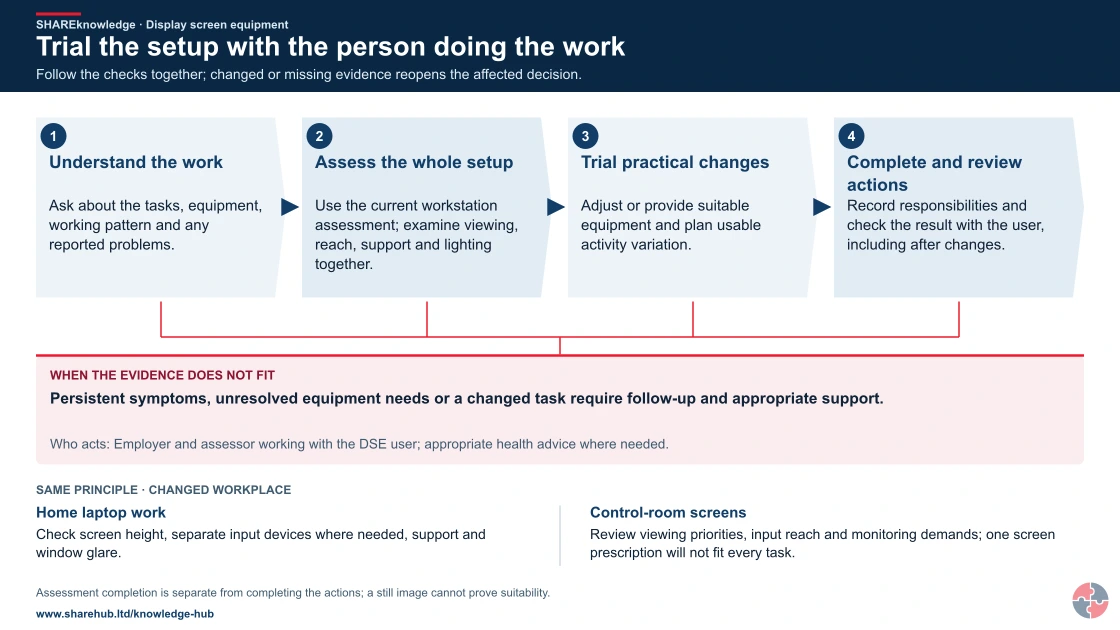
Full written explanation
- Understand the work. Ask about the tasks, equipment, working pattern and any reported problems.
- Assess the whole setup. Use the current workstation assessment; examine viewing, reach, support and lighting together.
- Trial practical changes. Adjust or provide suitable equipment and plan usable activity variation.
- Complete and review actions. Record responsibilities and check the result with the user, including after changes.
When the evidence does not fit: Persistent symptoms, unresolved equipment needs or a changed task require follow-up and appropriate support.
Who acts: Employer and assessor working with the DSE user; appropriate health advice where needed.
Changed workplace
Home laptop work: Check screen height, separate input devices where needed, support and window glare.
Control-room screens: Review viewing priorities, input reach and monitoring demands; one screen prescription will not fit every task.
Evidence check: Assessment completion is separate from completing the actions; a still image cannot prove suitability.

Riverside Leisure Ltd
Riverside Leisure Ltd is a leisure and hospitality business with reception desks, booking teams, finance staff, managers, remote workers and screen-based systems across multiple venues.
Riverside identifies DSE users in reception, finance, marketing, HR, bookings, membership administration, venue management and remote support roles. It does not assume only office workers need assessment; reception staff using screens for long periods and managers working on laptops between sites are included.
The organisation uses a DSE assessment workflow that captures user symptoms, workstation setup, chair condition, screen position, laptop use, lighting, software issues, break patterns and home-working arrangements. Actions are assigned to named owners, such as facilities for chairs, IT for monitors and managers for workload or break planning.
Riverside reviews DSE data quarterly. If one venue has repeated wrist or shoulder complaints, it checks desk layout, mouse type, counter height, staffing, booking-system usability and whether workers can actually leave the screen for short breaks. See HSE - Working safely with display screen equipment.
| Element | How Riverside manages it | Evidence |
|---|---|---|
| Assess and analyse | Maps DSE users across venues, home workers and mobile managers, then reviews task duration and symptom reports. | DSE user register, assessment completion rate and symptom trend log. Sources: HSE - Working safely with display screen equipment. |
| Implement controls | Issues chairs, screens, laptop risers, keyboards, mice, footrests and glare controls based on assessment findings. | Equipment issue records and action tracker. Sources: HSE - Working safely with display screen equipment. |
| Train and communicate | Gives all users short awareness training and trains local champions to help with setup and escalation. | Training matrix, induction records and champion competence list. Sources: HSE - Working safely with display screen equipment. |
| Manage work design | Reviews booking queues, video-call patterns, breaks, task rotation and software frustration. | Team workload review, manager check-ins and software feedback log. Sources: HSE - Working safely with display screen equipment. |
| Home and hybrid control | Uses home DSE self-assessment reviewed by a competent person and provides equipment where needed. | Home-working assessments and equipment approvals. Sources: HSE - Working safely with display screen equipment. |
| Check and improve | Audits overdue assessments, unresolved actions, repeat discomfort reports and eye-test requests. | Quarterly assurance report and improvement actions. Sources: HSE - Working safely with display screen equipment. |
Worked task decision
A hybrid booking worker reports wrist pain after moving between a reception desk and home laptop. This illustrative decision must be adapted to the real workplace and competent assessment.
| Decision stage | Worked example |
|---|---|
| Task and people | Three-hour booking shifts on two workstations; worker, line manager and trained DSE assessor are involved. |
| Before work | Manager confirms DSE-user status; assessor reviews both setups, work pattern, symptoms and previous actions with the worker. |
| Decision owner | Line manager funds and closes work changes; assessor recommends adjustment; occupational health or clinician advises on persistent symptoms. |
| During work | Trial separate keyboard and mouse, suitable screen height, input-device position and planned activity changes; worker reports comfort and feasibility. |
| Hold or stop | If pain worsens, numbness or weakness develops, or the temporary setup cannot support the task, pause prolonged screen work and arrange competent review. |
| Hand-back | Confirm the worker can use both setups comfortably and understands breaks, symptom reporting and eye-test access. |
| Evidence and change | Keep two location assessments, agreed actions, closure check and review after a move, new software, changed hours or renewed symptoms. |
What training should support DSE management?
Training should be tiered so users can self-adjust and managers can make sure action is taken.
General DSE awareness can be delivered as a short online or induction module. It should explain what DSE is, who counts as a user, how to set up a workstation, how to take breaks, how to request an eye test and how to report discomfort early.
DSE assessors need more practical training. They should understand posture, equipment adjustment, laptops, eye comfort, work routine, common symptoms, action prioritisation and when to refer to occupational health or an ergonomics specialist.
Managers need enough understanding to avoid treating DSE as admin. Their role is to make time for assessments, close actions, plan breaks, review workload and listen when people report symptoms. See HSE - DSE training and information.
| Level | Audience | Content | Observed demonstration | Record and recheck | Who assesses |
|---|---|---|---|---|---|
| General awareness | All DSE users. | Basic workstation setup, breaks, eye tests, symptoms and reporting. Sources: HSE - DSE training and information. | Adjust screen, chair and input devices, show an activity change and identify how to report symptoms or request an eye test. | User setup check; revisit after symptoms, location or task changes. | Line manager or trained DSE assessor |
| New-starter induction | New users and role changes. | Assessment completion, equipment routes and local support. Sources: HSE - DSE training and information. | Complete the local assessment and locate the route for equipment and help. | Induction and action record; check at first workstation use. | Line manager and trained DSE assessor |
| DSE assessor training | Nominated assessors and safety/HR support. | Assessment review, ergonomic principles, actions and escalation. Sources: HSE - DSE training and information. | Review a CK1 result, resolve an awkward laptop setup and verify a closed action with the user. | Assessor observation and action audit; refresh after guidance or equipment changes. | Senior assessor or ergonomics lead |
| Manager training | Line managers and team leaders. | Legal duties, action closure, breaks, workload, home working and symptom response. Sources: HSE - DSE training and information. | Plan a workable break pattern and authorise an equipment or workload change for a case. | Manager case check and overdue-action review. | HSE adviser or senior manager |
| Specialist support | Complex cases, recurring symptoms or disability adjustments. | Occupational-health or ergonomics input for tailored solutions. Sources: HSE - DSE training and information. | Interpret persistent symptom patterns and decide referral without making a diagnosis. | Specialist case record with minimal health data; review after outcome or changed work. | Occupational health or qualified ergonomics lead |
How should the controls be managed and reviewed?
Assign owners to the significant risks, put the chosen controls into the work plan, check that they work in practice and change them when conditions or evidence change.
HSE describes this as a continuing plan, do, check and act process. For dse, record who checks the controls, what evidence shows they are working, and which failure stops the work or triggers review. A formal management system is a choice, not a substitute for the applicable legal duties. Read HSE management guidance.
What are the warning signs that DSE is not being managed well?
Weak DSE management shows up as symptoms, unresolved actions and work patterns that make good posture impossible.
The most important warning signs are not tidy forms; they are people reporting pain, eye strain, headaches, fatigue or frustration while actions remain unresolved. A completed checklist has little value if the worker still has no suitable chair, still works all day on a laptop or still cannot take breaks.
Warning signs can manifest as sickness absence, reduced productivity, compensation claims, increased occupational-health referrals, presenteeism, high equipment complaints, poor morale or workers quietly buying their own equipment because the employer route is too slow. See HSE - Working safely with display screen equipment.
| Warning sign | How harm can manifest | What to check |
|---|---|---|
| Assessments completed but actions open | Pain and discomfort continue because risks are identified but not controlled. | Action owner, due dates and closure evidence. Sources: HSE - Working safely with display screen equipment. |
| Laptop-only work for full days | Neck, shoulder, back and wrist symptoms. | Laptop risers, separate screens/keyboards/mice and home setup. Sources: HSE - Working safely with display screen equipment. |
| No break culture | Eye strain, fatigue, stress and reduced performance. | Workload, staffing, meeting schedules and manager expectations. Sources: HSE - Working safely with display screen equipment. |
| Repeated wrist/hand symptoms | Upper-limb disorders may worsen if repetition continues. | Mouse type, keyboard position, task rotation and referral route. Sources: HSE - Working safely with display screen equipment. |
| Users do not know eye-test rights | Visual discomfort persists and poor posture may develop to compensate. | Training, induction and reimbursement process. Sources: HSE - Working safely with display screen equipment. |
| Hot desks are not adjusted | People inherit poor setups and twist, reach or slouch. | Desk setup instructions and local checks. Sources: HSE - Working safely with display screen equipment. |
What do the acronyms and key terms mean?
Acronyms should be understood before they are used in assessments, training or action plans.
| Acronym or term | Meaning | Meaning in this task |
|---|---|---|
| DSE | Display Screen Equipment. Source: Health and Safety (Display Screen Equipment) Regulations 1992. | Screen equipment used for work; assess the full workstation and work pattern, not the display alone. |
| DSE user | A worker who habitually uses DSE as a significant part of normal work. Source: HSE - DSE workstations and assessment. | A worker whose habitual screen use makes the specific DSE duties relevant; HSE uses daily hour-long periods as a guide. |
| MSD | Musculoskeletal Disorder. Source: HSE - Working safely with display screen equipment. | Musculoskeletal harm that may show as neck, back or upper-limb pain during screen work. |
| RSI | Repetitive Strain Injury, a broad term for pain linked to repetitive use or overuse. Source: HSE - Working safely with display screen equipment. | A broad symptom label, not a diagnosis that identifies the cause without assessment. |
| OH | Occupational Health. Source: HSE - Working safely with display screen equipment. | Specialist advice on function, adjustments and return to work when symptoms persist. |
| CK1 | HSE's DSE workstation checklist. Source: HSE - DSE workstation checklist CK1. | HSE workstation checklist that prompts assessment but still needs trained review and action closure. |
| L26 | HSE legal guidance on work with display screen equipment. Source: HSE - Work with display screen equipment L26. | HSE guidance to the DSE regulations; use alongside the actual GB or NI instrument. |
| VDU | Visual Display Unit, an older term often used for screen equipment. Source: HSE - Working safely with display screen equipment. | Older name for a screen; the work setup and pattern still decide the assessment need. |
Which BuildOut documents support this topic?
Download individual editable BuildOut documents for this topic. Procedures and plans contain completed arrangements; forms, checklists, assessments, RAMS and permits are blank masters. Registers include separate worked examples.
| Document | Purpose and content | Editable download |
|---|---|---|
| Office/DSE assessment and lone-worker contact procedure BOUK-PRO-OFF · Completed worked example · v1.0 | Assess workstations and isolated work, provide adjustments and test escalation arrangements. | Download DOCX Read preview |
| DSE workstation assessment BOUK-RA-OFF-01 · Blank editable master · v1.0 | Assess qualifying workstation use and identify appropriate changes. | Download DOCX Read preview |
| Lone-working and violence-risk assessment BOUK-RA-OFF-02 · Blank editable master · v1.0 | Assess isolation, communication, vulnerable locations and foreseeable aggression. | Download DOCX Read preview |
| Office and home-work environment check BOUK-CHK-OFF-01 · Blank editable master · v1.0 | Review access, fire, electrical, storage and general welfare risks. | Download DOCX Read preview |
| Lone-worker check-in and missed-contact escalation BOUK-FRM-OFF-01 · Blank editable master · v1.0 | Record contacts and proportionate escalation without unnecessary surveillance. | Download DOCX Read preview |
| DSE adjustment and eye-test request record BOUK-FRM-OFF-02 · Blank editable master · v1.0 | Track agreed equipment/work changes and applicable eye-test provision. | Download DOCX Read preview |
Review and adapt the documents for your organisation, activities and jurisdiction before approval and issue. Open the SHAREms management-system hierarchy to find each document under its parent policy.